
the Google Assistant allows us to send and read messages from WhatsApp without having to write. It is very convenient when we are driving or have our hands full and at that time we have to send or respond to a contact with said courier.
To use WhatsApp with your hands-free voice, the Google Assistant offers several ways to send a message to a contact which we will see in detail below:
Send WhatsApp messages with the Google Assistant

Google Assistant offers these three ways to send a WhatsApp message:
- “Hey Google, send a WhatsApp message”: Here the Assistant will ask you for the name of the contact, then his telephone number if there is more than one, and finally the content of the message.
- “Hey Google, send a WhatsApp message to [contacto]”: Here, when you directly indicate the name of the contact, it will only ask us for the content of the message and possibly to which number if this is the first time that we send you a WhatsApp with the Google Assistant.
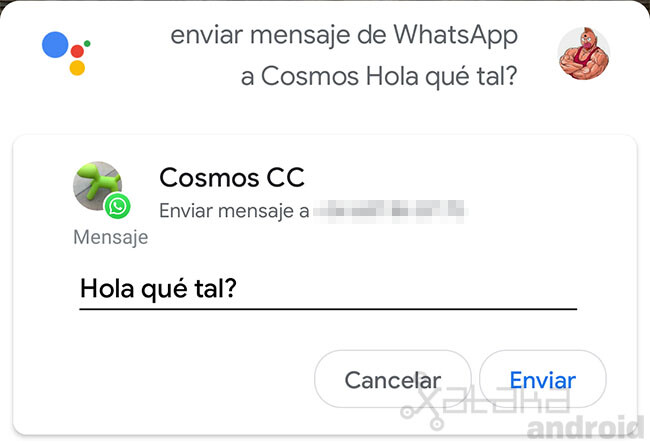
- “Hey Google, send a WhatsApp message to [contacto] [mensaje]”: Finally, with a single voice command, we can indicate to the assistant the name of the contact and the text of the message. For example “send a WhatsApp to Laura, I’m on my way”.

Listen to your WhatsApp messages with the Google Assistant

The Google Assistant also allows us to listen to and respond to messages we have received. For that we just have to tell him “Hey Google, read my WhatsApp messages” and it will start reading our messages one by one, asking in each message if we want to respond.
Send a voicemail message with the Google Assistant

Finally, the Google Assistant allows you to send audio messages, but currently this feature only works in English, so you will have to add the English language in the settings of the Assistant so that it recognizes the command. Send a voice message. It will start recording what we tell it and send it out after it’s done.


