
Discover all the features offered by the iOS 15 update.
Make an appointment with your general practitioner, do the monthly shopping, schedule an important work appointment … the app Reminders iOS and iPadOS is a fabulous tool for, and worth the redundancy, for remembering all the tasks that you have pending.
Over the years, Apple has tweaked various aspects of this app with the goal of providing the best possible user experience in its operating system. How could it be otherwise, this year was no exception. The launch of iOS 15 brought many new features to Reminders and today we’re going to make sure you know everything the app has to offer by heart.
Then we leave you with a wonderful list with the best reminder tips for iphone. With this set of functions, you will have the opportunity to master the use of the application and learn how to make the most of all its benefits.
What is the Reminders app and what is it used for?
Before starting to list the list of tips, functions and new features of Reminders, it is imperative to indicate the nature of this application for all users who are not familiar with it.
The Reminders app was born to allow users of iOS, iPadOS and the rest of the platforms in the Apple ecosystem to add habits and pending tasks. A sort of fusion between calendar and alarms for a better organization of your daily life.
The best tips for mastering the Reminders app on iOS
1. Hey Siri, create a reminder!
Siri is by far one of the most essential tools on your iPhone. He can text, order food delivery, offer information, conduct research, and even tell jokes!
And yes, of course Siri also has the option to create reminders in the iOS Reminders app. To create a reminder with Siri, we recommend that you use this command when you have activated Apple’s virtual assistant:
“Hey Siri, remind me (task) at (time) of the day (day).”
It is a really complete command since it allows to specify the task, the date and the time.
Now let’s try an example:
“Hey Siri, remind me to renew my Netflix subscription on December 30 at midnight.”
Alternatively, you can try to have a smooth conversation with the virtual assistant if you are still not very clear on what you want to remember. It’s a bit slower process, but it’s definitely more fun. In addition, it is a very useful way for your brain to clarify what, how and when it wants to remember something.
1. Activate your Siri virtual assistant on your iPhone.
2. Use the command: “Create a seven in the afternoon reminder.”

Siri and reminders.
3. Siri will ask you, “What do you want me to remind you of?” “
4. Answer, for example: “Hang up the clothes”.
2. Two brains think more than one, sometimes!
Just as one user can share notes with another, the Reminders app on your iPhone also gives you the option to share a reminder list with other users (e.g. friend, family member). or your partner) so that together you can refine and share the tasks.
This time, we’ll use household chores as an example and share our reminder list with a couple.
Here are the steps you need to take to share your reminders with another user:
1. Open the Reminders app.
2. Click on the text “Add a List” located in the lower right corner of your iPhone screen.
3. Write a name for your reminder list.
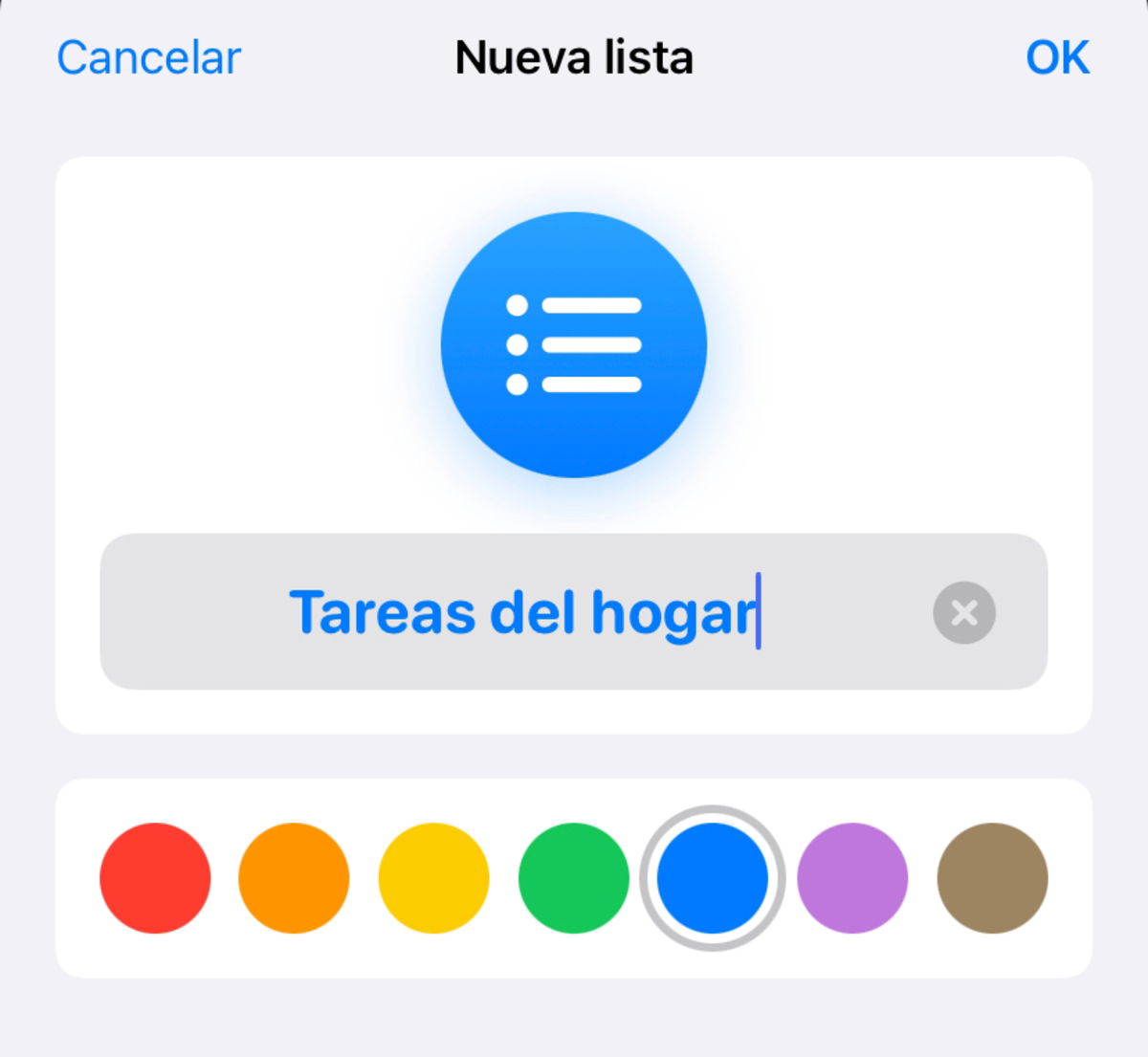
Creation of a new list of reminders.
4. Pulse “OK”.
5. Access the created list, in this case “Household tasks”.
6. Click on “New reminder” to add as many reminders as needed.
7. Click the (…) button in the upper right corner.
8. Select the “Share List” option.

How to share your reminders.
9. Click on “Add a person …”.
ten. do faucet on the (+) button.
11. Select the contact with whom you want to share your reminder list.
Once done, your contact will have the option to access the reminder list to make changes and modify any reminders they want. Your contact you will only have access to this list, the rest of your reminder lists will be private.
3. Unify the services of all your applications …
Another advantage of the iPhone Reminders application is that it can link the application with the rest of the applications in your operating system. This means that you can create reminders from apps like Mail, Notes, Netflix, Spotify, etc. to add direct links in Reminders.
1. Open an application, in this case Notes.
2. Navigate to the notes you want to include in your reminders.
3. Click the button to share content.
4. Select the Reminders app.
5. Edit the reminder as you like and add it.
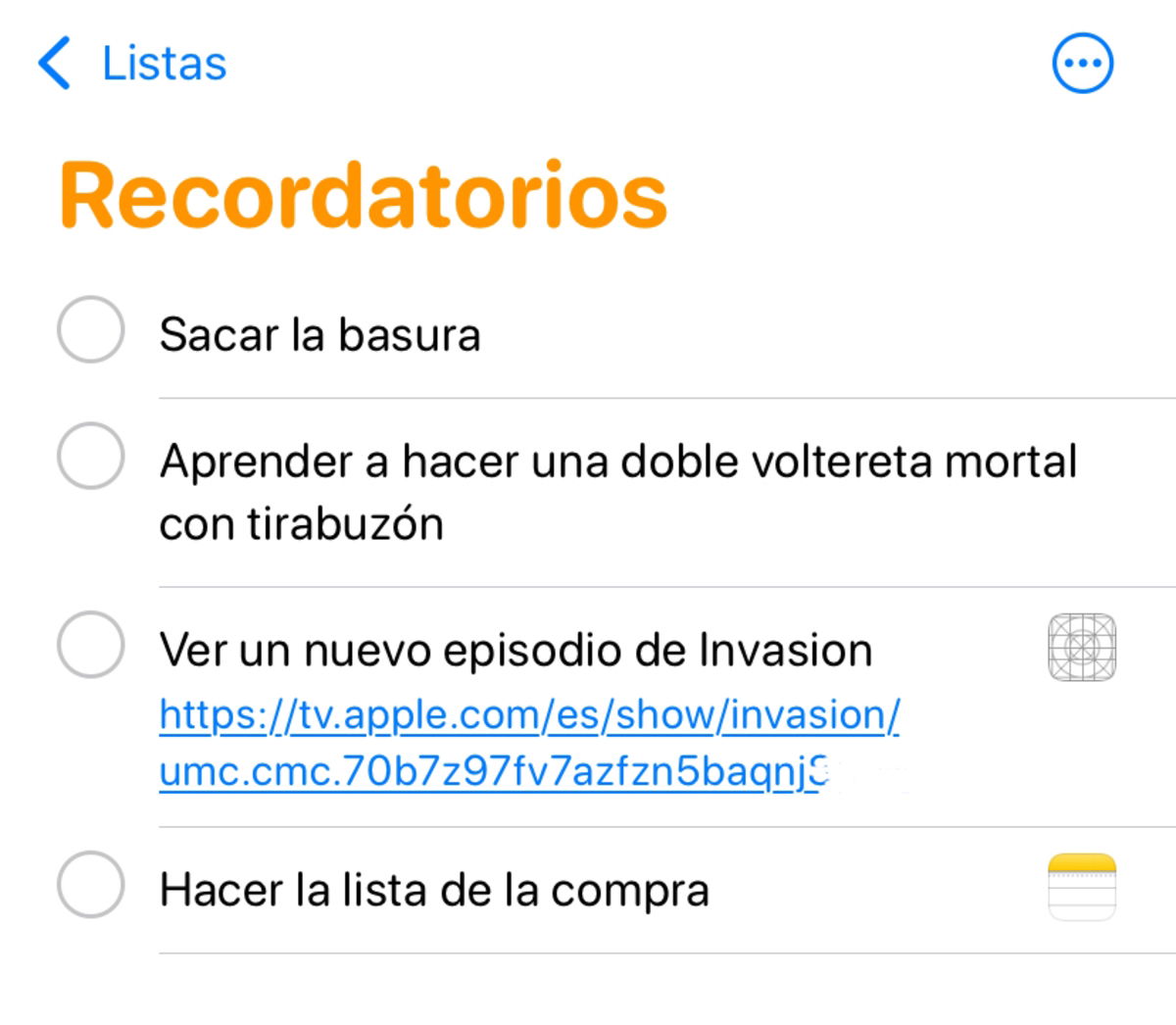
Your iPhone system will automatically create a reminder that will be linked directly with third-party applications, so that when you click on it, it will take you to another application.
4. # Create tags
The arrival of iOS 15 meant the introduction of a very interesting new feature in the iOS Reminders app: the use of tags to filter content and perform quick searches.
To create a label on your reminders just use a hashtag (#). By writing this character in the titles or in the notes of your reminders a series of recommendations will appear, you can use the one you prefer.

The use of labels in reminders.
Creating a new label for your reminders is as easy as clicking the button (#) that appears at the top of the keyboard or type a hashtag yourself on each reminder. If you click on the tags section, you will be able to access a list with all the tags you have created in order to filter reminders.
5. Your reminders, how you want, wherever you want
Did you know that it is also possible to add places to your most important reminders? Whether you have a date with your partner or need to go to the mall, the Reminders app on your iPhone has a very efficient system for including places in your tasks.
Follow these steps to add a location to your reminders.
1. Open the iOS Reminders app.
2. Create a reminder.
3. Click on “Details”.
4. Activate the “Location” option.

The location in Reminders.
This function requires that you have activated the localization in Settings> Privacy and it will notify you of your reminders based on your current location.
Related topics: Tutorials

Subscribe to HBO Max with a 50% discount always
Subscribe to Disney + for $ 8.99!
Table of Contents


