
Related News
Xiaomi’s security app has various interesting cleaning tools, as well as some functions that we have already explained to you when we told you about the MIUI tricks. Some of these cleaner tools can be very useful if you want to remove attachments from apps like WhatsApp, but it doesn’t stop there, it also has a large file finder that can help you lighten up the internal memory of your device. Xiaomi mobile or tablet.
Use the WhatsApp Cleaner

WhatsApp Cleaner Analysis
The free Android
The first of these utilities is a WhatsApp cleaner which review attachments sent to you in the mail app, dividing them according to the type of file they are, and then allowing you to select which ones you want to delete.
It is an ideal tool to lighten the weight of your attachments received in your chats. Surely you want to keep some of these files, but there are others that are more everyday and that, surely, you can erase without worries.
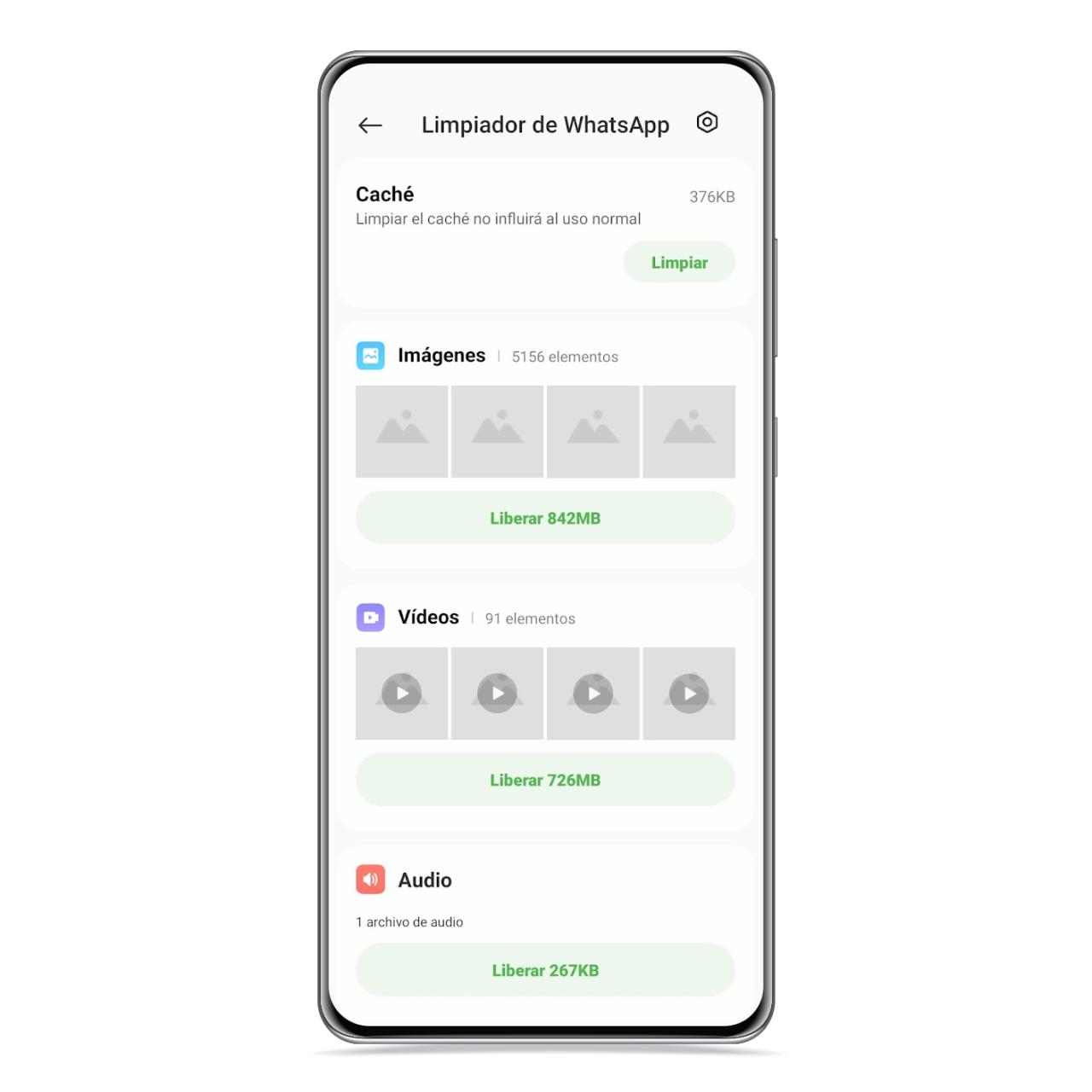
whatsapp cleaner
The free Android
Whether it’s getting rid of photos, videos or audios, you can get rid of attachments you don’t need in one. simple and well-organized way. Something ideal to avoid accidentally deleting files that you want to keep.
Deep cleaning

Deep cleaning
The free Android
On the other hand, the Deep Cleaning section will deeply scan your gallery and internal storage to offer you different solutions to clean the inside of your files, like detecting APK files you no longer need. It will show you a list of these so you can delete them all, or just the ones you select.

Clear app data
The free Android
There is another section where you can access a list with the same principle, but in which they appear large files, in general, that are on your mobile, whatever their extension.
As for the photographs, this is one of the most useful sections, since after analyzing your gallery, it will divide them into several different sections depending on the reasons you may have for deleting them.

photo cleaning
The free Android
Some of the categories displayed are duplicate images, accidental photos, screenshots, or underexposed or overexposed images. In each category, you can access the scanned images and select the ones you want to delete.
In the duplicate images, you will see that a star is placed in the preview of the images that came out better than the rest of the duplicates, which gives you indications on which ones you should remove.
You may be interested
Follow the topics that interest you
Table of Contents


