
Do you have uncomfortable memories that you don’t want to come up? Don’t delete it! You can easily delete these memories on your iPhone and Mac. Here we tell you how.
Featured Memories and Photos sections in the Apple Photos app can automatically feature memorable images in places like the For You tab, Search, and Photos widgets on the home screen. These images can be recent or old and are a great way to relive memorable memories and moments that you may have forgotten, all automatically.
However, if you frequently share your device with others, you may want to keep these sections private. For example, if you have five thousand photos in your library, the app may display old and potentially embarrassing images in these For You sections and widgets that you may not want others to see.
For this reason, Learn how to stop your iPhone, iPad, or Mac from displaying images in the Memories and Photos sections Highlights of the Photos app as well as the Photos widget.
Disable Memories and Featured Photos the Easy Way
You will need to follow these simple steps on each device on which you do not want to see featured photo content..
On iOS
- Open the Settings app on your iPhone or iPad.
- Scroll down and tap Photos.
- Turn off the Show Featured Content option in the Featured Memories & Photos section.
- Now go back to the Photos app and tap For You. You will see that the Memories and Featured Photos sections are empty. Instead, you will notice a banner informing you that the featured content is disabled. You can tap Go to Settings and turn this option back on.
- Additionally, if you’ve added one of the Featured Photos app widgets to your iPhone or iPad’s Home screen or Today view, it will appear as an empty gray block with a label saying “Featured Content Disabled.” You can long press on this widget and tap Remove Widget to get rid of it.
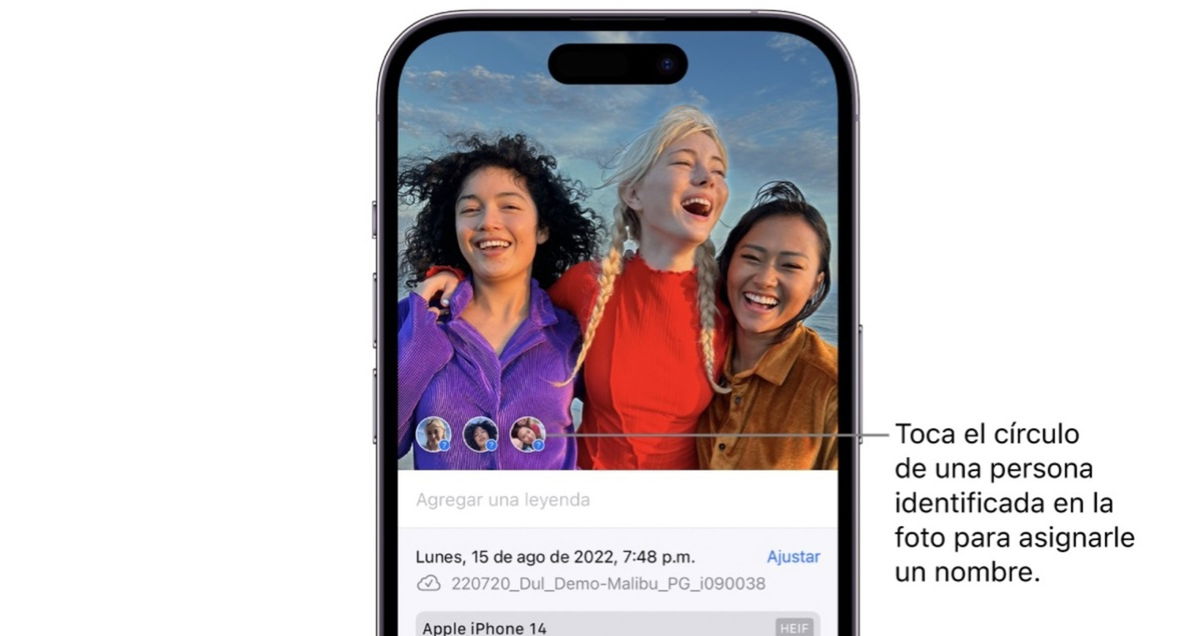
The Photos app has many great features, but you need to know how to use them to get the most out of them.
On macOS
The Photos app on Mac still doesn’t have a For You or Featured Photos section. However, it has a Memories section and you can prevent your photos and videos from appearing here.
- Open the Photos app on your Mac.
- Click Photos in the top menu bar and select Settings.
- Make sure you are on the General tab.
- Uncheck the Show featured content box next to the Memories option. You can also uncheck Show Holiday Events and Show Memories Notifications.
- Once you turn off Show Featured Content, the Memories option will disappear from the Photos app sidebar on this Mac.
As you can see, removing this option is very simple and will only take you about 5 minutes (plus you can reactivate it whenever you want). All that remains is to continue checking the functions of this application, such as deleting all photos of a person from iPhone.
Table of Contents


