
The iOS 18 Photos app has completely changed, but in exchange it allows a lot of customization to leave it to your liking
One of the big changes in iOS 18 was the new Photos app. Apple described it as the biggest overhaul of the app in its history. However, the changes aren't always pleasant at first, and many users prefer the design of the Photos app in iOS 17 and earlier.
This won't be possible, but you can do a series of changes to make the iOS 18 Photos app look like we had before. Follow these tips and you will surely enjoy the iPhone Photos app more.
1. Change the order of photos
THE The iOS 18 Photos app lets us sort and filter the main content. And one of the changes you can make to make the Photos app look more like the one we had before is to change the order of the photos, which has been changed in the new version.
We have two possible options, and by default the order by capture date is activated. While in the previous Photos app, in the Albums section there was sorted by date of inclusion. So if you want the display to look more like the Photos app before, make this change:
- Go to the Photos app.
- Swipe to the top area where your photos appear.
- Tap the icon with two arrows.
- Select Sort by date added.
- You can also use the View options and tap Screenshots to view them.
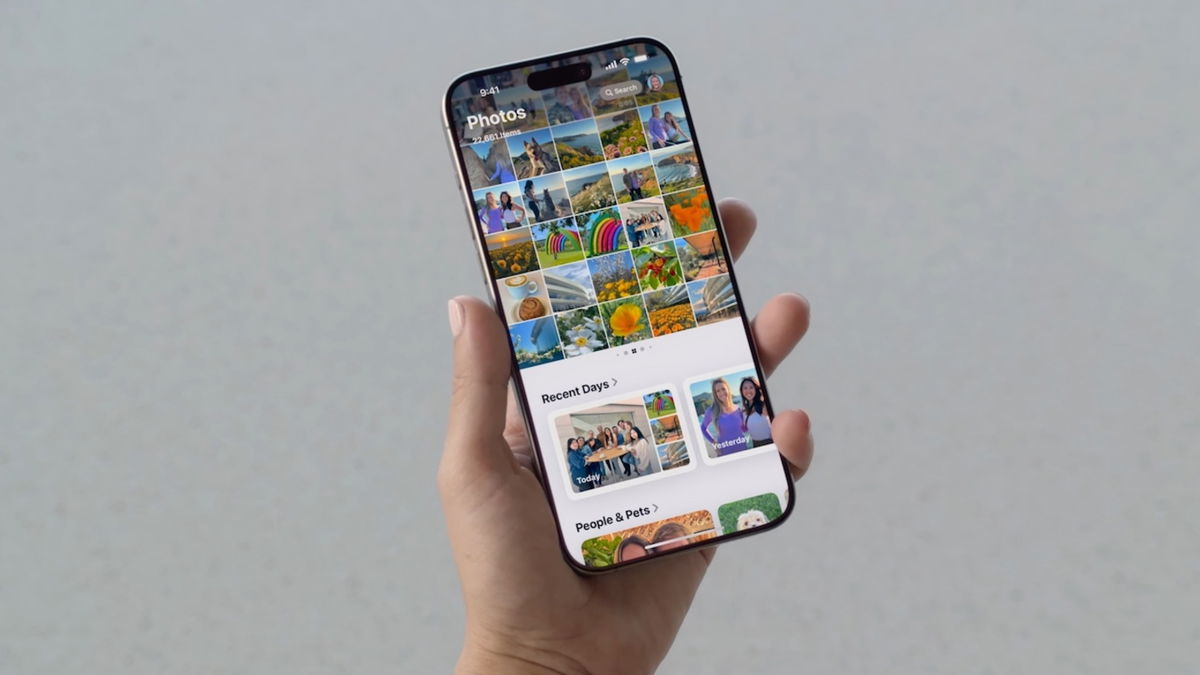
You can change the Photos app in iOS 18 to look like it does in iOS 17
2. Organize content
Although the Photos app has brought a drastic change in iOS 18, the truth is that allows for a lot of customization so that it is to the taste of each user. Personalization is one of the features of iOS 18 and we see it in the Photos app.
And this customization allows us to carry out a series of settings to make the Photos app simpler and similar to the Photos app before. Here is what I recommend you do:
- Go to the Photos app.
- Scroll to the bottom area and tap Customize & rearrange.
- To simplify the Photos app, I recommend only enabling the Albums, Memories, Content Types, and More Items sections.
- Now categorize them as follows by moving the three bars to the right: Memories, Albums, Content Types and Other Items.
- From now on, the Photos app will be much simpler and more like the one we had before.
Apple can make more improvements
Apple has listened to Photos app users and we've already seen significant changes in iOS 18.2. So We do not rule out that the company makes more improvements to the Photos appimprovements that could even arrive with iOS 19, the next big iPhone update.
However, you should keep in mind that previous Photos app doesn't return. Apple made a very thoughtful change and the changes to the Photos app make sense. I didn't like it at first, but in the end it's something you get used to.
You can follow iPadized on Facebook, WhatsApp, Twitter (X) or check out our Telegram channel to stay up to date with the latest tech news.
Table of Contents


