
These features of iOS 16 are not very well known but they must be activated as soon as the new operating system is installed.
In iOS 16 we have some fantastic improvements, like the new customizable lock screen. However, the system includes many more interesting and unknown functions. That’s why we collected 5 iOS 16 Settings to Enable and change right away.

In iOS 16 we have many new features and these functions are very little known
1. Enable Battery Percentage
It is one of the iOS 16 news that stood out the most, despite the fact that it was not even announced by Apple during the official presentation of the system. This setting allows us to numerically see the percentage of battery remaining on the iPhone in the battery icon itself.
Since iOS 16.1, this function improves reach all iPhones with Face ID, and also slightly changes its design. To enable it, just follow these steps:
- Come into Settings of you iPhone.
- Go down in the section Drums.
- Inside the battery, turn on the switch battery percentage.

iOS 16’s new battery percentage looks great
2. Adjust notifications to your liking
In iOS 16 we have a new way to display notifications. As you probably know, notifications now appear at the bottom of the screen and can be customize to display in 3 different ways. Depending on your preferences, you can choose the one you prefer from Settings > Notifications:
- Count: if you activate this display, you will simply see a number in the lower area indicating the notifications you have.
- Band: This form groups the notifications by groups, for example by type of applications.
- Listing: here we have the most classic option, the iPhone will display all the notifications in the form of a list in chronological order.
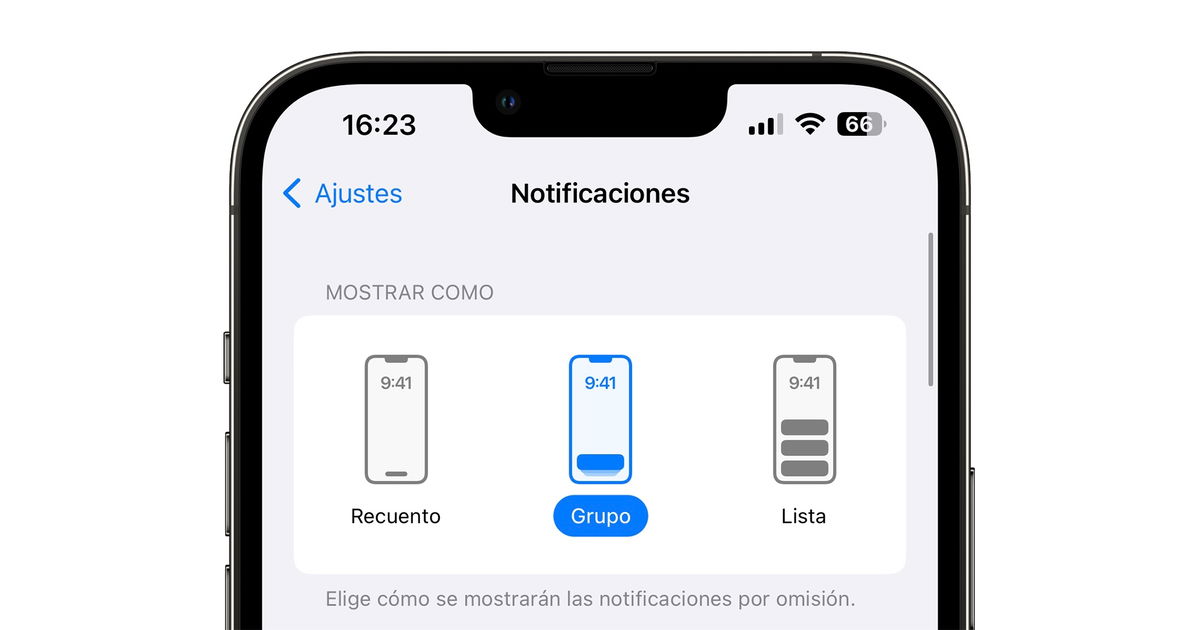
You have several ways to display notifications in iOS 16
3. Enable Sticky Notes
The Notes app is a great tool for jotting down ideas, creating lists, sketching… and now you can access it more easily because Apple has added a Sticky Notes Icon to Control Center. You just need to activate it:
- open Settings.
- Come into Control center.
- Scroll down and tap the + icon next to quick note.
- Now you can find the sticky note icon in the Control Center.
4. Enable keyboard with haptic vibration
In iOS 16, the iPhone keyboard can respond to key presses with a small haptic vibration. It is something that, although it can gain more autonomy, can be interesting for many users. It is activated from Settings > Sound and vibration > Key feedback > Vibration.
5. Avoid accidentally hanging up
If you have repeatedly accidentally hung up a call by pressing the side button on the iPhone, you are in luck because in iOS 16 there is a function that allows you to avoid it. you must enter Settings > Accessibility > Touch > Prevent calls from ending when locked. You will no longer accidentally hang up.
In iOS 16 we have many great features and we face one of the best updates in recent years. By enabling these features, your iPhone will be better and more useful than it was right after installing iOS 16.
Table of Contents


