
Take advantage of your potential for your iPhone with these iOS 18 tips
The introduction of iOS 18 has linked a story full of functions, advantages and significant relevance services such as the new layer of personalization of the home screen or the large overhaul of the control center. But the mobile operating system of the iPhone hides many other tips that deserve to be recalled.
In this guide, we invite you to discover A selection of iOS 18 stuff for iPhone This will help you very useful when you benefit from your entire iPhone potential and serve your operating system to the maximum.
Without further ado, we start with the collection of iPhone tips in iOS 18. Personalizing contact posters to blocking applications with Face ID. There are tips for all tastes!
How to customize a contact poster

This function personalizes the background of your calls
The contact posters arrived at the iPhone with iOS 17, but most users do not benefit as they should. This utility allows you to create a contact card for you and / or your friends with a colorful background and photographs based on photographs or memories. Contact posters will appear both in your calls and in the calls you receive. Follow these steps to customize a contact poster for any contact that you have on your iPhone.
- Open the request Contacts in iOS 17 or iOS 18.
- Then access the tab of any contact.
- Click the button To modify In the upper right corner.
- Press the user's contact poster.
- Then click the button Personalize.
- Select your contact photo and poster with typographies, colors, stickers and effects.
How to look by voice on Google

Vocal research function of iOS 18
The iOS 18 keyboard and many applications of the App Store have their own vocal dictation system, but if you sail for safari, there is a much more effective method for carrying out research on Google. You just need a key on the screen of your iPhone.
- Open Safari.
- Keep your finger pressed on the Bar addresses.
- Select the option Voice research.
- Say what you want to look for: images, websites, information …
Transform an application into a widget

Apple has focused a lot on widgets in the latest software updates. With iOS 18, a new system has been incorporated which allows Convert the icon of an application directly into a widget via a drop -Down menu on the home screen. The most useful thing about this tool is that you can also change the format and dimensions of each widget. Try it and you will see! The rest of the applications will be adapted around the screen compared to the size of the widget.
- Keep your finger pressed on an application.
- Select the widget format you want In the icons of the upper or lower area of the Drop -Down menu.
Select text with the keyboard secret trackpad

Text selection on the iPhone keyboard
This is one of the least known iPhone keyboard tips in iOS 18. The selection of a specific text can become a headache, but with this trick, you will perfectly dominate this task. You don't have to press the screen twice to select a word or three times in a row to select a paragraph. There is a better way.
- Keep your finger in the space bar To access the secret trackpad on the iPhone keyboard.
- Then without freeing, Use another finger To click on the virtual keyboard.
- Finally, Move your finger you used to press The space bar to select the text.
How to block applications with a face ID

Protect the confidentiality of your WhatsApp cats activating the Face Id blocking
Confidentiality is important, your privacy too. That you do not want anyone to overcome your scores in your favorite games as if you wanted to increase the level of safety of your most sensitive information, you can block any application with ID Face so that you can access it. It can be very useful, for example, to block applications, photos or mail from WhatsApp.
- Keep your finger pressed on an application.
- Then select the option Require an identity document.
In order for the application to stop asking for the front identification, you just need to reverse the process.
Adjust the intensity of the flash

The intensity of the flash focuses on the dynamic island
You will surely know that if you keep your finger pressed on the flash button in the control center, you can increase or reduce its intensity. But did you know what 18 no further? It is possible to expand its range, strengthen its objective and also control its intensity. Of course, this tip is only compatible with iPhone models with Dynamic Island.
- Access to Control center of iOS 18.
- Keep your finger pressed on the button flash.
- Slide your finger on the Dynamic island To adjust the intensity of the flash.
iPhone mirror
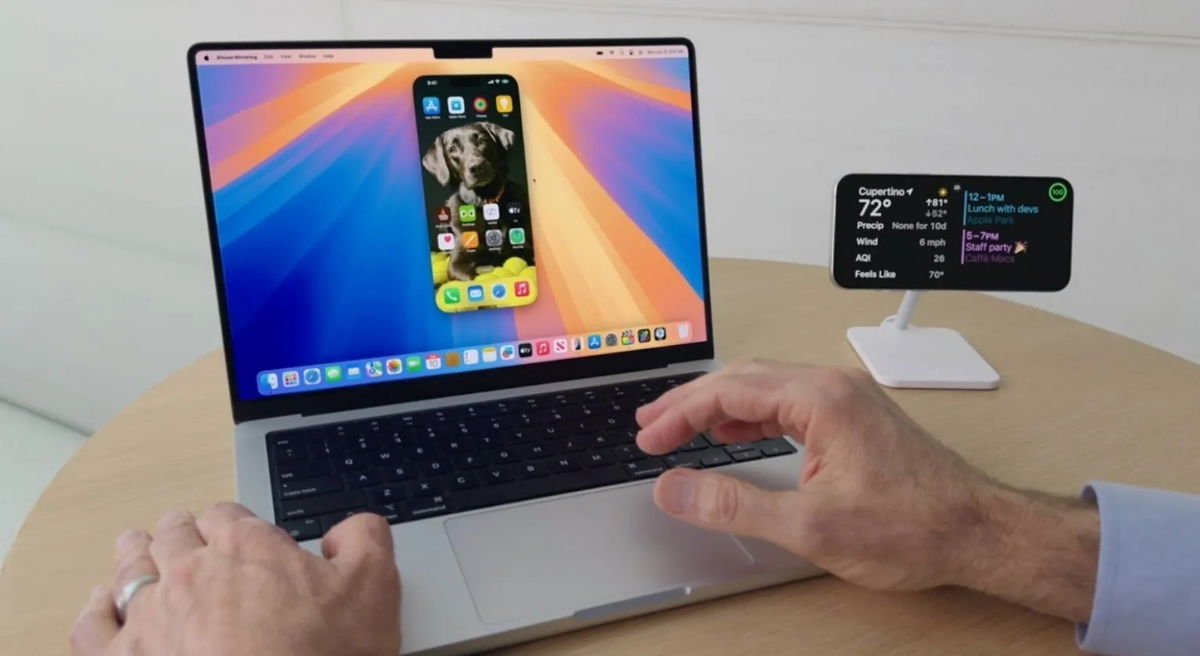
The iPhone Mirring is one of the star functions of MacOS Sequoia
The iPhone Mating feature offers the possibility of double the screen of your iPhone … and being able to control it from the computer! It is very useful when writing very extensive texts or to display content on the Mac screen.
- The iPhone, the mirror appears as an icon in the platform When your iPhone and Mac are connected to the same network.
- You must have iOS 18 and MacOS Sequoia on your iPhone and Mac.
- This function is not available in the European Union before April 2025, but you can change the language and region of your iPhone to use it.
So far, our selection of iOS 18 tips to enjoy your iPhone. We hope they will help you a lot and that you include them in your daily life from today. They are really useful! All questions, you know, you can follow us on social networks.
You can follow Ipadi On Facebook, Whatsapp, Twitter (x) Or consult our Telegram channel to be up to date with the latest technological news.
Table of Contents


