
Not happy with your iPhone’s “fast charging”? Here are 7 tips to improve your average charging time
Apple’s iPhone has always had complications when it comes to its battery level compared to other phones. While it is true that performance has already improved on several models with the arrival of the iPhone Pro Max, this is not enough since it does not have the largest battery or the one with the best fast charge. Despite these difficulties, iPhone behaves like a titan when performing certain tasks and you can also use different tricks to charge it as fast as possible. In normal and official contexts, iPhone charges from 0% to 50% in 30 minutesthe remaining time will depend on the optimized charge and as it approaches 100%, the time becomes slower. That is why we are going to show you 7 tricks to charge the iPhone faster. If you notice that it has a bad behavior, you should check if the battery in question is damaged.
Do not charge iPhone with another device such as a laptop or mobile phone
Maybe you’re pressed for time and don’t have the charger you usually use.. Some users think that any computer will charge the iPhone quickly, but this This happens precisely because the iPhone tries to recover as much charge as possible in the first few minutes.; This happens with any charger, but the total charging time will not be the same.

iPhone connected to a MacBook Pro
If you do this normally, take care of the laptop by connecting it to power before connecting your iPhone. The laptop battery itself might get damaged over time. Avoid connecting iPhone to another device to get batteryif you do this you will never get a fast average load time.
Turn off the iPhone
This trick is the oldest one in existence, perhaps predating the iPhone.. If you don’t need it for a long time, this is the best option; do this by first connecting the iPhone to power and then turning it off. If you do the opposite, when you connect it, it will turn back on. This will only work with an iPhone with an adapter and cable, with MagSafe or wireless, it will not be possible. The only downside to turning it off is that you won’t know the charge level until it’s turned on..

This way you can locate your iPhone even after it is turned off
Remember that to turn off an iPhone with Face ID, you must press and hold the side (lock) button and the volume up button at the same time until the power off command appears. With Touch ID, the side button only.
Use airplane mode to save time
This is one of the best solutions to save fast loading time and have information about the loading progress.. Activate airplane mode from the control center, make sure wireless connections like Wi-Fi and Bluetooth do too in addition to mobile data.
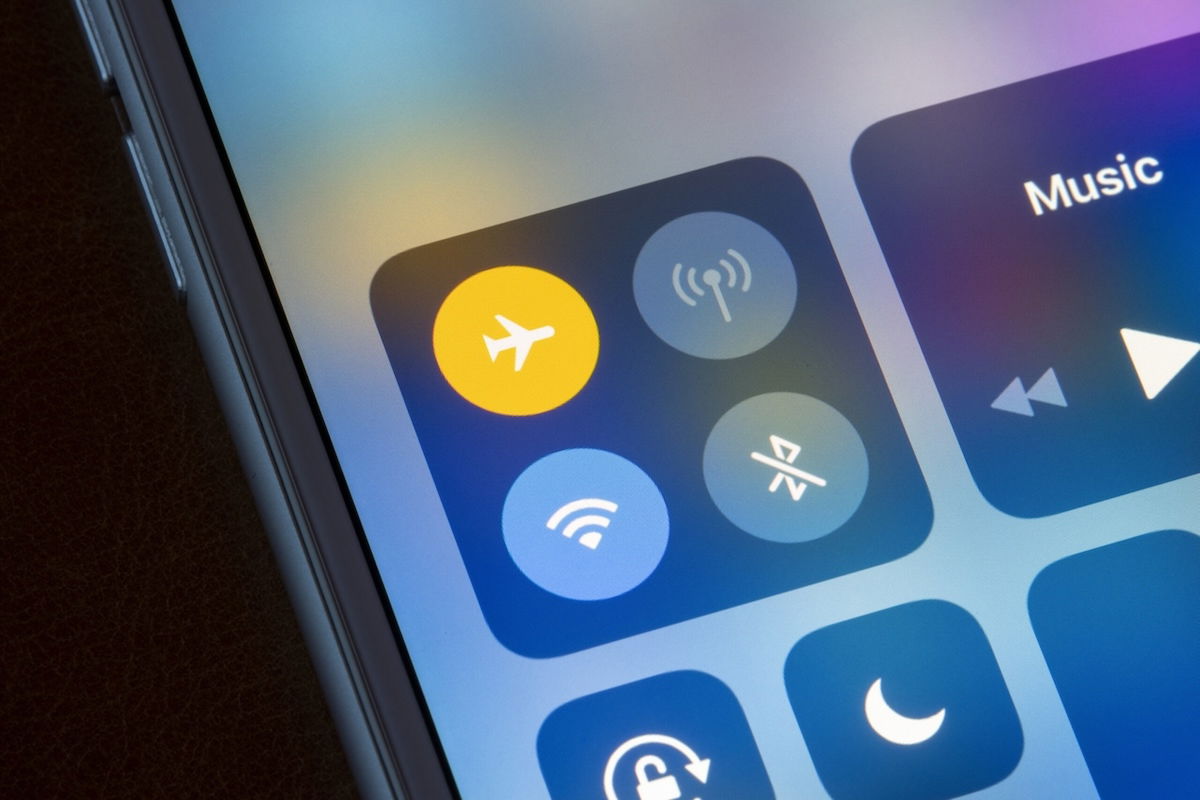
Airplane mode active on iPhone
If you need the estimated 100% charge time, our colleague Ángel Roca has prepared this shortcut for you.
Close resource-intensive applications
To gain a little faster charging time You need to make sure that no applications are consuming resources in the background. In case you didn’t know, there are some long running background processes that could be draining your iPhone’s battery (aka Zepp Life). The best thing to avoid this and the above is to close the app immediately. Open the multitasking view or app switcher and delete them one by one.

This is what multitasking apps look like on iPhone
In addition to this, you can disable background updates from Settings in General and then in its dedicated section. Although The best option is to choose low power mode so it does it automatically
You can enable it from the Control Center or in the Battery section of the Settings app.
Disable optimized battery charging
This feature came several versions of iOS ago and is the reason why your iPhone only reaches 80% battery. To prevent this from happening, you need to disable it.
If enabled, iPhone will learn from previous charging behaviors to reduce its speed when charging one or more times in the future. To turn it off, go to the Battery section of your iPhone’s Settings. Go to Battery Health and Charging and turn off Optimized Battery Charging..
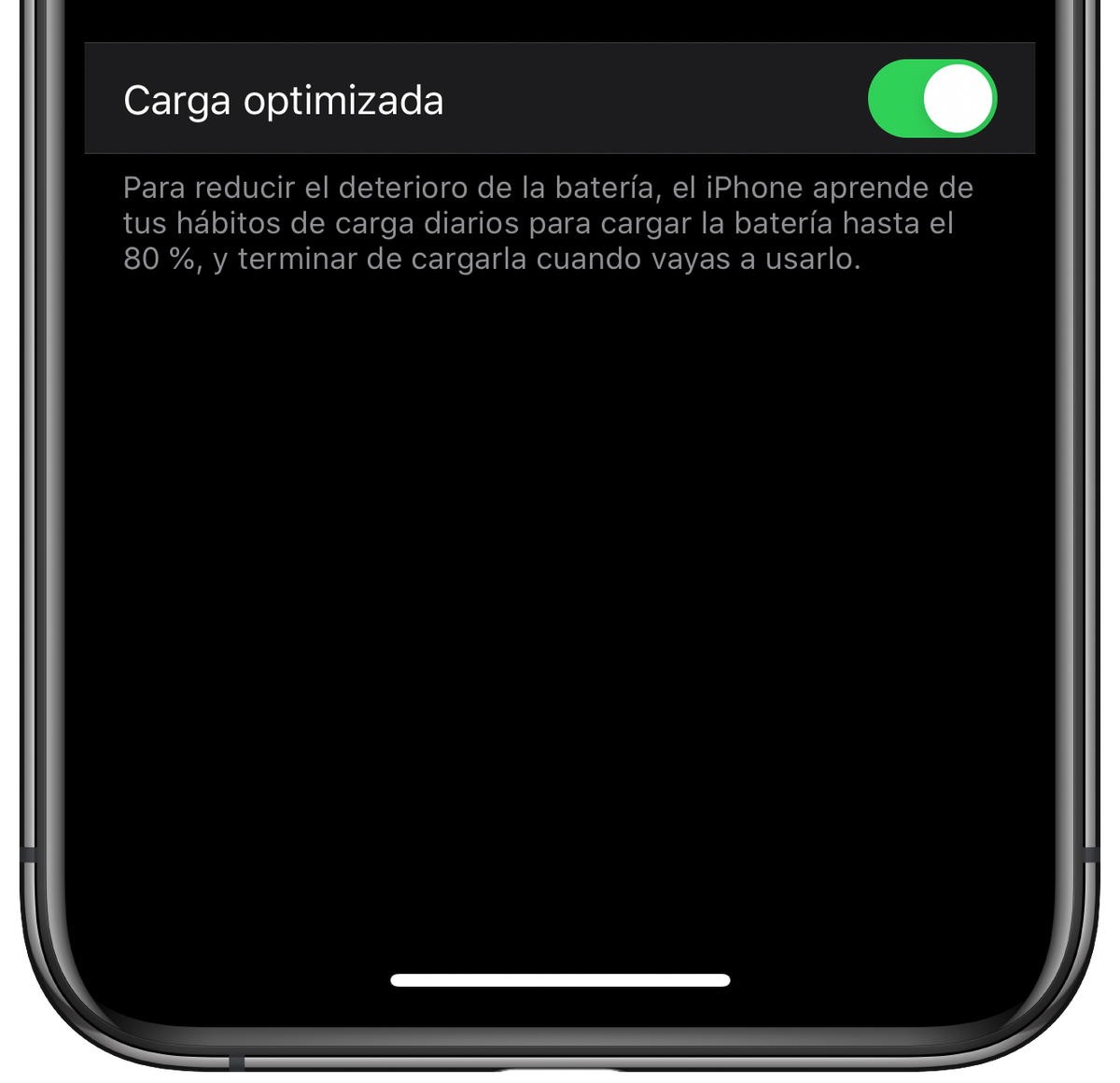
Optimized charging is achieved when it reaches 80% on the iPhone
On iPhone 15 models, you’ll find the feature in the Charging Optimization menu. This feature should be enabled by default, just turn it off when you need to save more time.
Charge it at a suitable temperature
Proper charging of an iPhone should take place in an environment between 16 and 22 degrees Celsius. Yes, it is a higher or lower temperature could influence the charge level. You will most likely encounter a higher temperature (unless you live in a country with a fairly cold climate) which prevents it from fully charging. When it reaches 80%, if the iPhone is too hot, it will stop charging.

You have to pay attention to the temperature of the iPhone
Help the iPhone charge in a cool place, avoiding hot places or long exposure to sunlight. Also, do not use it when you are in an environment subject to high temperatures.
Do not charge iPhone via MagSafe or wirelessly
Maybe other manufacturers have fast wireless charging, but Apple doesn’t.. The maximum charge of MagSafe is 15W connected with a 20W adapter and in other types of wireless chargers it is 7.5W. So it will never be an alternative to fast charge the iPhone. It is better to use the 20W charger via cable.
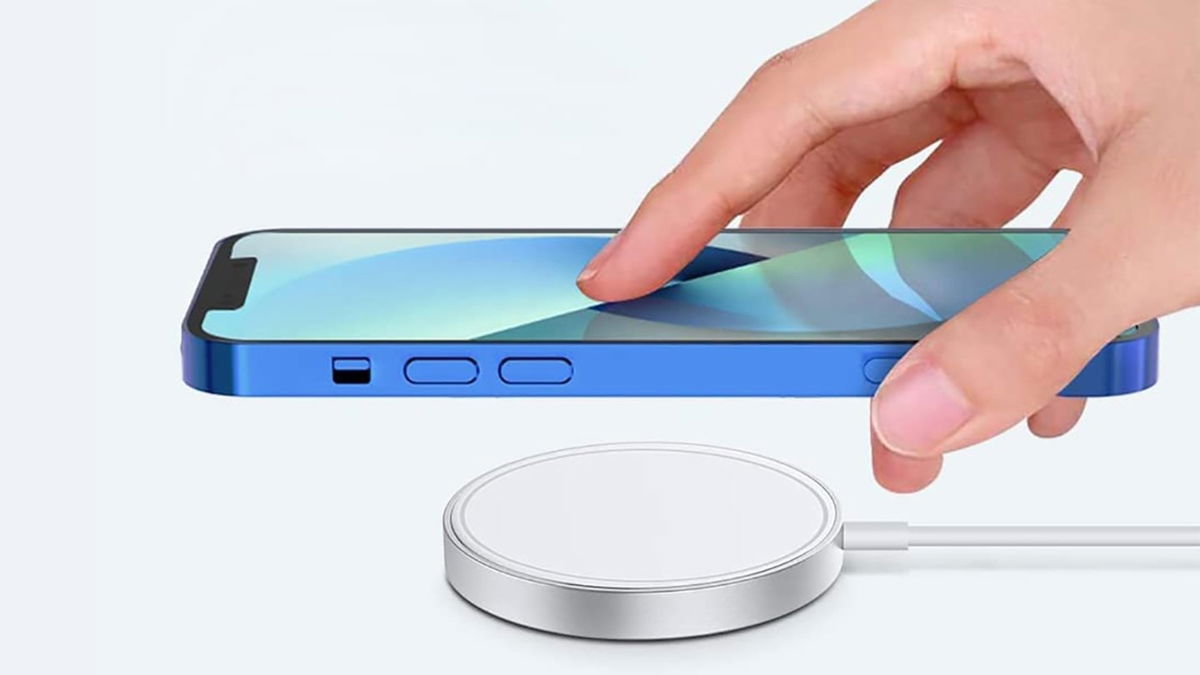
The Apple iPhone MagSafe charger
It goes without saying that Do not use the iPhone for extended periods of time while it is charging.. You may need it at the same time you charge it, but the iPhone will have to work harder to charge and will take longer. The iPhone, by natural behavior, will eventually heat up.
Please use the appropriate official or third-party adapter in addition to the MFI certified cable. If your iPhone is not charging for any reason, we explain what to do as well as additional tips for charging the iPhone properly.
You can follow iPadized on Facebook, WhatsApp, Twitter (X) or check out our Telegram channel to stay up to date with the latest tech news.
Table of Contents


