
Related News
Google Translate has become an indispensable tool for understanding other languages, and over time has built-in functions such as translation using the camera which also make it very useful when traveling. Without a doubt, it is one of the most interesting applications of the company in terms of tricks, and then you can discover some of them with which you can take full advantage of them.
Translate a document

translate a document
The free Android
One of the coolest features of Google Translate is that of translate documents. This translation is not done from the translator itself, but from the web version, where you have to upload the file for Google to take care of everything.
- Go to the Google Translate website.
- Open the document you want to translate
- Click translate.
Hear how what you have translated is said
Phonetics at the translator
The free Android
It’s possible that if you want to know how to say a word in another language, you want to use it, but the way something is spelled and pronounced is usually different. You can hear how a translation is pronounced by clicking on the speaker icon that appears next to her. Even its phonetics will be revealed to you so that you know how to say it perfectly.
Translate using your mobile camera
If you travel or just see a sign in another language, you can find out what it says without even having to write it Thanks to Google Image Translate. To enable it, follow these steps:
- Open Google translate.
- Click the camera icon on the main screen.
- When the camera opens, hover over the text you want to translate.
Explore definitions

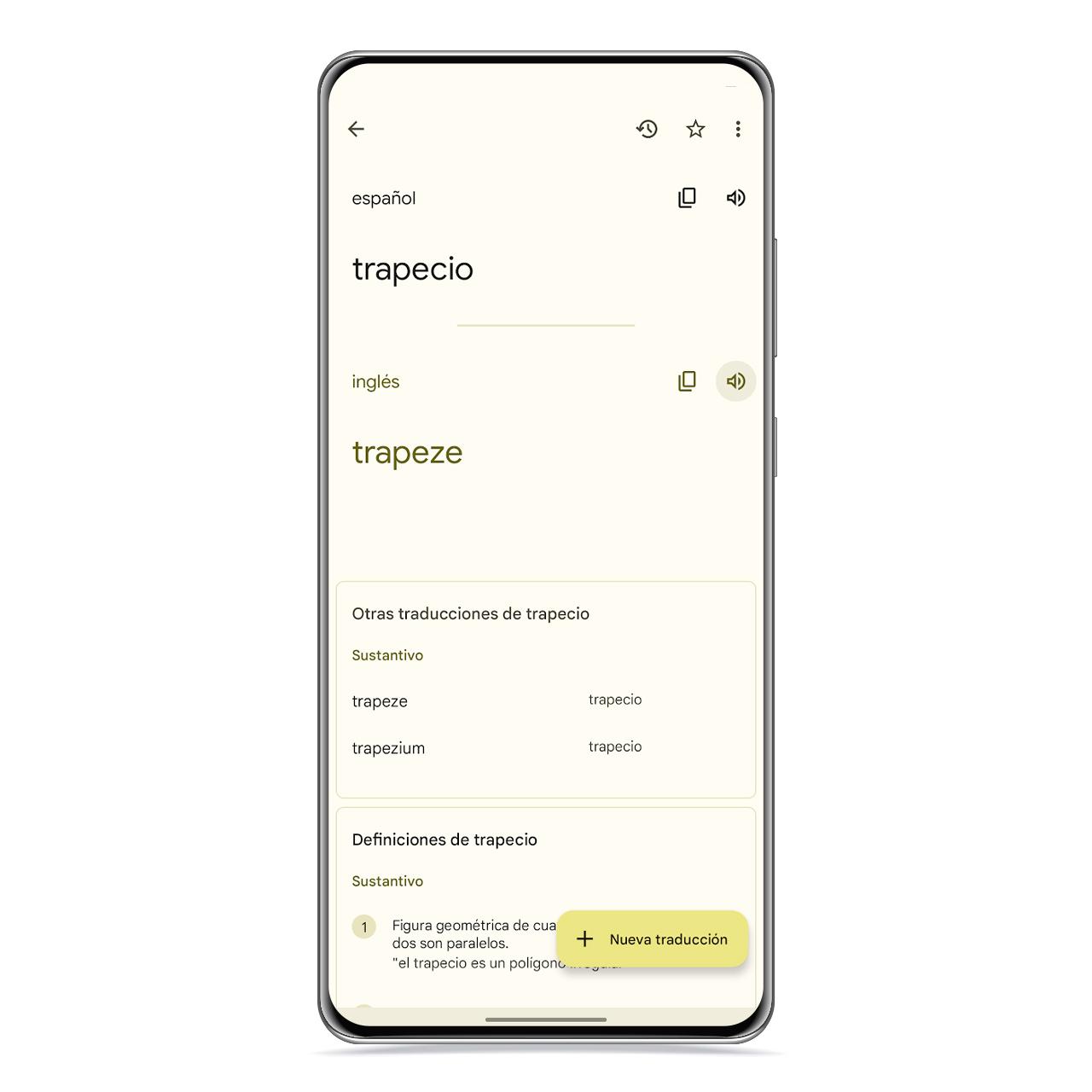
Definitions in the translator
The free Android
In the latest versions of Google Translate, when you translate a word, you can also access some of its synonyms and even other translations of the word. If you swipe down, you can also see their different definitions, it will help you understand what exactly each word means, including the different meanings.
transcribe live

Transcription with the translator
The free Android
If you don’t want to start conversation mode, you can always perform a live transcript by clicking the microphone button in the bottom center.
When you do, it will start translating automatically and it won’t replicate how to say it in another language like it does in the chat option.
record key phrases

Save key translations
The free Android
If you are traveling and need record a few key phrases for quick access, you can save and access them from the star button on the top left of the app.
To add a phrase to saved translations, just type it in the text box and once you see the result you want to save, click on the star located at the top right.
Access translation history

Translation history
The free Android
If you want to check what is the last thing you translated on your mobile or tablet with the Google application, you just have to drag from text box down to show you the words or phrases you searched for and their respective translations in list form. You can click on each for more information.
Translate conversations

Conversation in Google Translate
The free Android
Google has the ability to translate a conversation immediately, something very useful to be able to make yourself understood when traveling to another country. You can choose the two languages that will be used in the conversation and start speaking quietly, because when you stop speaking the application will translate and reproduce what you said in audio form. To enable this feature, follow these steps:
- Open Google translate.
- Click chat.
- Choose the languages you will use.
Translate from Google keyboard
Gboard, Google’s keyboard, has the integrated translation function, so you can translate a sentence you’re writing right now without even having to leave the app you’re in, whether it’s IM or Notes. To do this, make sure you’re using Gboard and follow these steps:
- Start typing in an app to bring up the keyboard.
- Click on the arrow located at the top left of the keyboard.
- Give the three points.
- Click on “Translate”.
- Choose the languages and translate the text you want.
You may be interested
Follow the topics that interest you
Table of Contents


