
Google gives all its users 15 GB of cloud storage for free, but it doesn’t last forever and if it reaches its maximum capacity, you won’t be able to receive any more emails, so we’ll show you how you can backup gmail to save all the information you have received in recent years.
[5 trucos infalibles que uso para limpiar Gmail y que no lleguen tantos correos]
There is always the alternative of paying an annual fee to take advantage of more storage on Google’s servers, which will share all enterprise applications like Google Drive or Google Photos, but it is true that it is not an option that is worthwhile for everyone.
For this reason, one of the best options you have is to download a backup copy of all your emails so that you can delete them without worries and always have this information available in a saved file on your computer.
How to Backup All Your Emails in Gmail
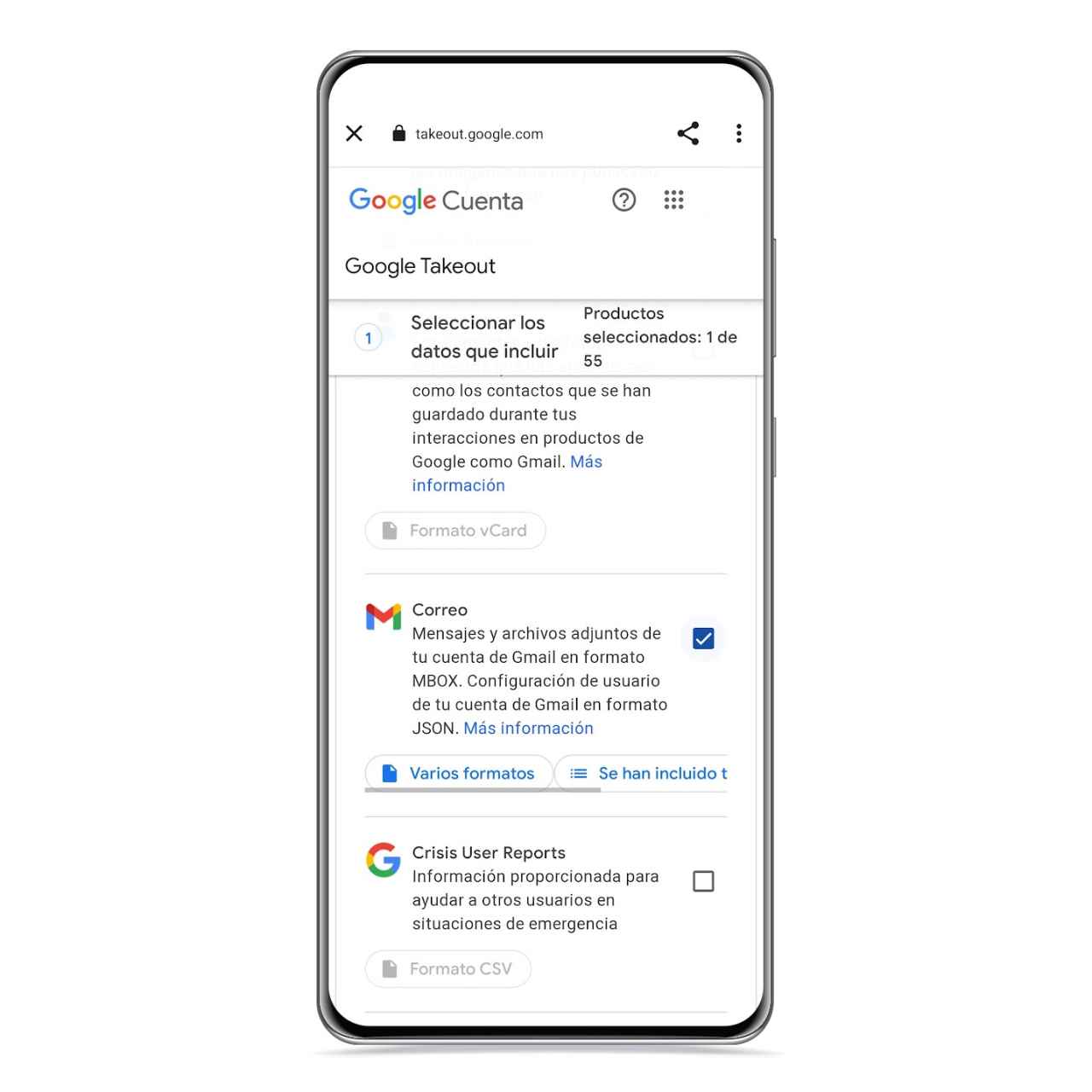
Google Takeout
The free Android
Google has a fairly easy way to export all of your emails to a file that you can save to your computer to access it whenever you want and read all your email history. You just have to follow these steps:
- Open Gmail and click on your profile picture.
- Click on Manage your Google account and then on Data and privacy.
- Look for the option to download your data
- When the services from which you can download data are displayed, select Gmail
Also, if you wish, you can configure this backup to be performed periodically so that you can always have an up-to-date copy of your emails. If not, just tap Export once, and when it’s ready, Google will email the backup to you.
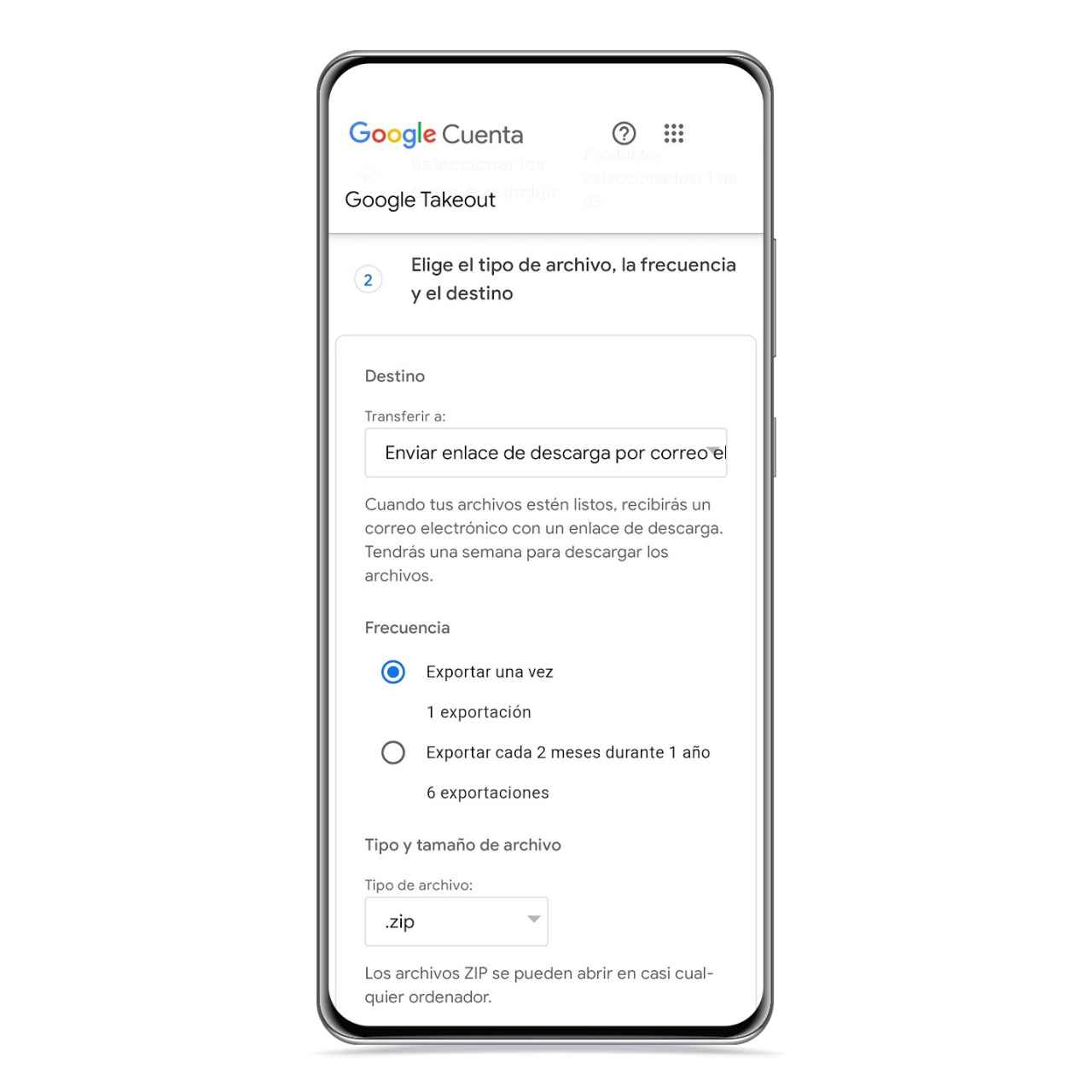
Backup frequency
The free Android
You must take into account that the format in which they are saved is .mbox, which means that you cannot read them as if they were a plain text file, but you can use third-party applications to to be able to examine them.
To do this, the most comfortable method that exists is to use the Windows MBox Viewer application and open backup file With this program, it will restore data so that you can see all stored messages.
Now that your emails are safe, you can delete any that you think you don’t need in the short term to make room for new emails that arrive in your inbox or to use this storage in another Google service. .
You may be interested
Follow the topics that interest you


