
So you just got a brand new iPhone 16, you've transferred everything from your old phone, and now you're ready to play with your shiny new toy. What do you do first? Obviously, you'll be checking out the apps you've already been using on your old iPhone for so long, probably marveling at how quickly they load and how smooth and responsive everything is.
So what? Here are our suggestions for the next things you should do with your iPhone 16 or iPhone 16 Pro. And since the iPhone 16 will be the first iPhone most people own that's capable of running Apple Intelligence, there are plenty of cool new features to try.
Update to iOS 18.2
If you own an iPhone 16 series handset, it comes with iOS 18 and may even be updated to iOS 18.1 already. But you should check if it already contains the latest version of iOS: iOS 18.2. It arrived in mid-December and adds features primarily aimed at iPhone 16 users, such as Visual Intelligence, Image Playground, Genmoji, and ChatGPT integration. Additionally, there are many bug fixes and security updates, so you should install it as soon as possible. To get it, open Settings, then tap General And Software update.
Enable Apple Intelligence
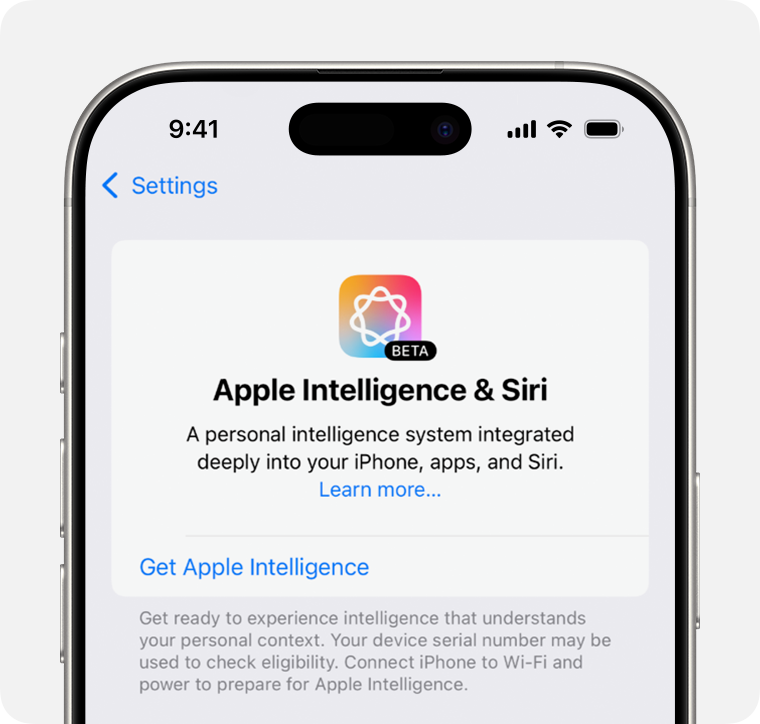
You almost certainly got a pop-up screen during setup telling you about Apple Intelligence and giving you the option to enable it. But it's easy to just hit “next…next…next” on these screens without really paying attention.
If you need to enable Apple Intelligence, you can open Settings, select Apple Intelligence and Sirithen press Get Apple Intelligence.
Apple
Your iPhone language will need to be set to one of the languages supported by Apple Intelligence (starting with iOS 18.2, namely English (Australia), English (Canada), English (Ireland) , English (New Zealand), English (South Africa), English (United Kingdom) and English (United States)).
You can register a small waiting list, but this usually lasts minutes or hours rather than days. Then your iPhone will download the Apple Intelligence templates and you'll be ready to go in no time.
All Apple Intelligence features may not work optimally until your phone has completed background processing and indexing. So it's a good idea to keep it plugged in for a while while updating.
Adjust camera control settings
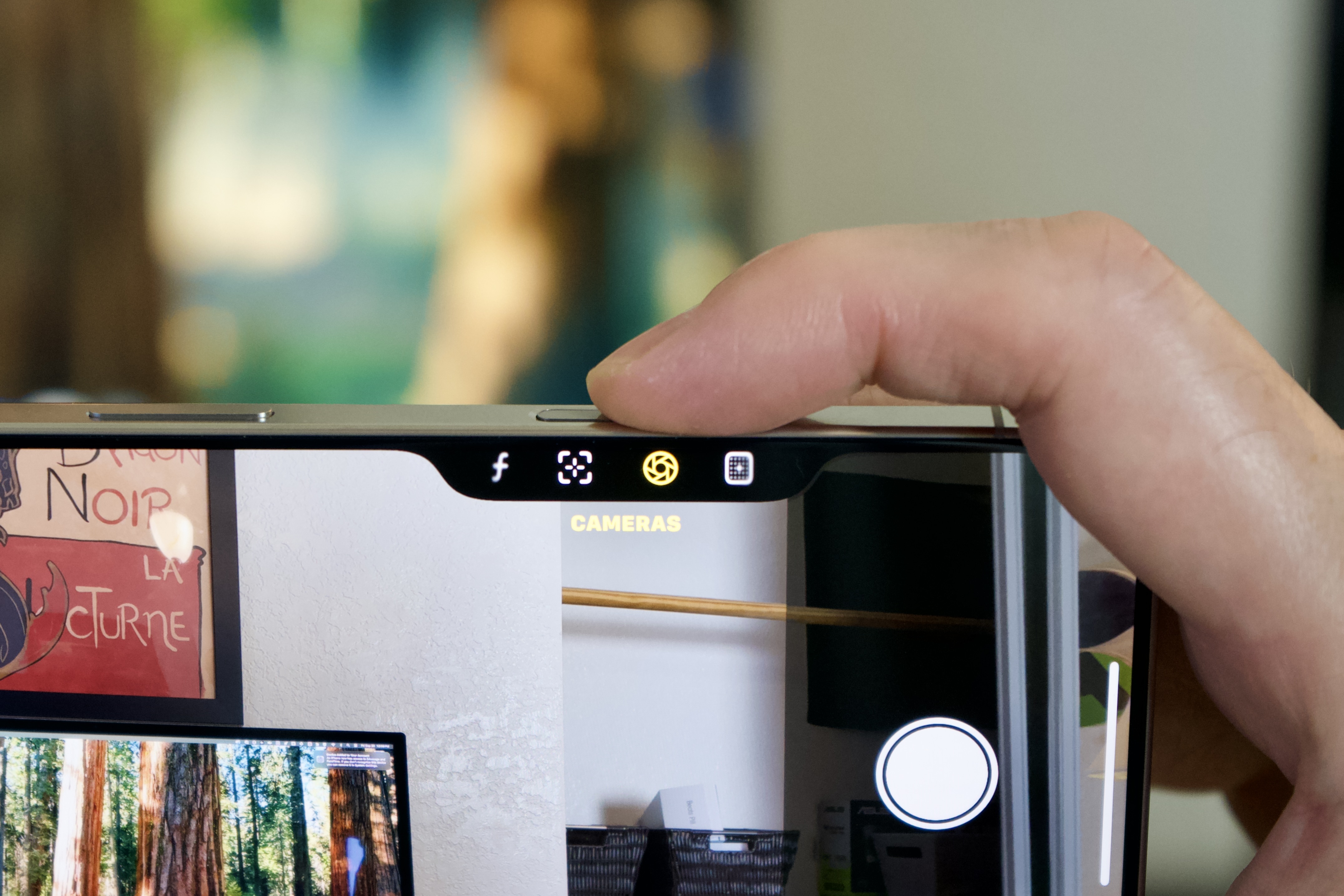
One of the coolest new features in the iPhone 16 is the camera control, that new button on the bottom right that's flush with the edge. It can launch your favorite camera app, act as a shutter button, and even adjust certain camera features with swipes and taps.
But it's a bit tricky, and with the default settings it might be more of an annoyance than a benefit. We have a guide to fixing the camera control button that details the settings you can change.
A set of options can be found in Settings > Camera > Camera control and the other is in Accessibility > Camera control.
Dive into these two menus to adjust the camera control button and make it work the way you want. It will make a big difference! And remember: you can turn everything off if you can't get it to work the way you want.
Foundry
You can do this on any iPhone, but many people haven't done it yet and it might save your life one day. So setting up a new iPhone is a great time to open the Health app to enter important medical credentials and set up an emergency contact. Medical Credentials can display critical medical information or allergies on your lock screen to a first responder, and an emergency contact is someone who can be called in an emergency by pressing and holding the side buttons and volume.
- First, open the Health app.
- Then press your profile picture top right.
- Faucet Medical ID card.
- Enter any critical medical information a first responder would need if you are involved in an accident, as well as an emergency contact you would like to reach.
Personalize your home screen and control center
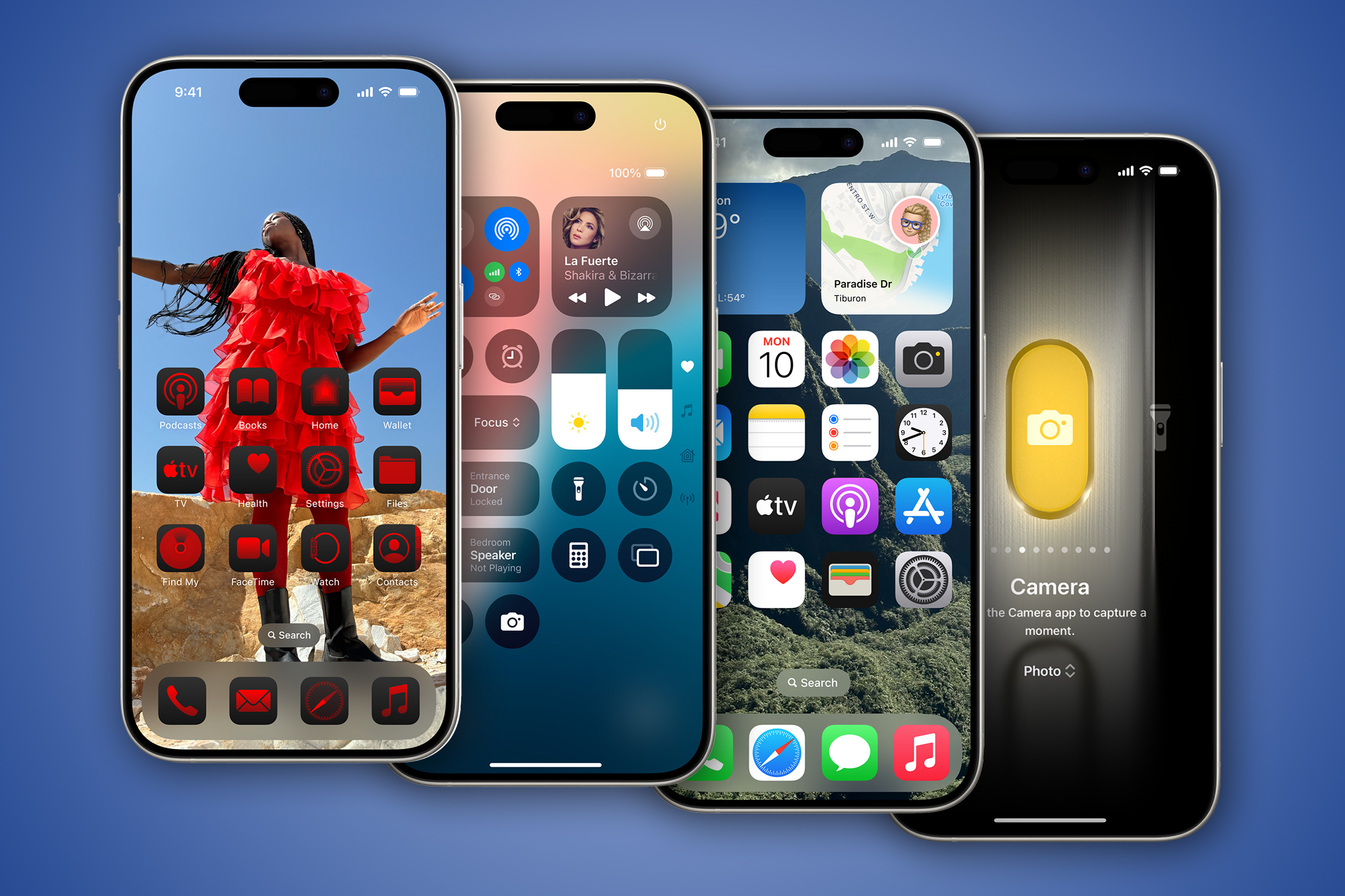
If this is your first iPhone, or you just haven't spent much time with iOS 18 yet, you might not know that you can now dramatically customize your Home screen and Center of control.
You can add widgets and position them anywhere, color icons, enlarge icons without text, and much more. And you can now add Control Center controls for all kinds of third-party apps, and resize or rearrange them.
Check out our guide to customizing your Home screen or Control Center in iOS 18 and give your brand new iPhone 16 a new look.
Foundry
Adjust the new Photos app
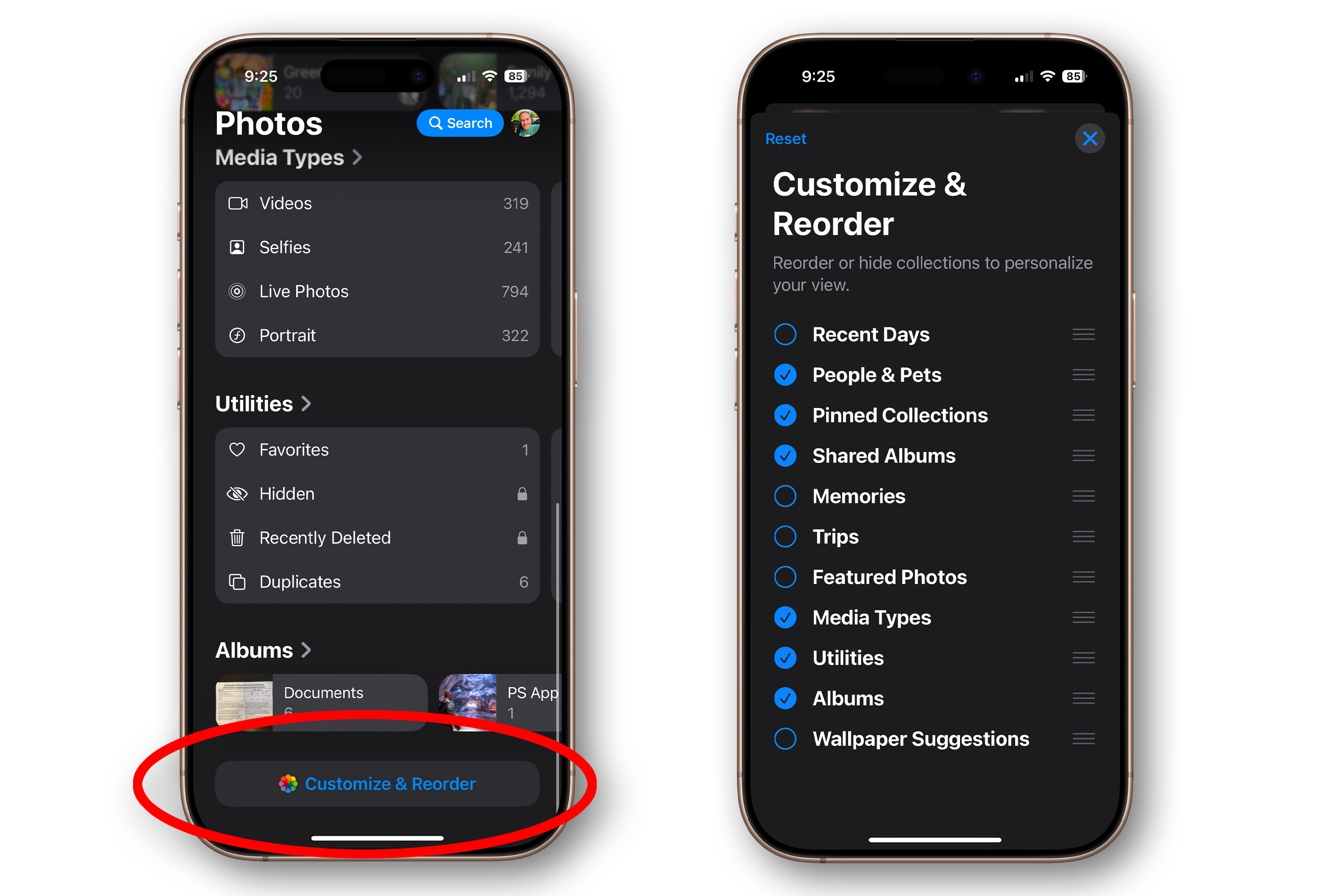
Speaking of customizing iOS 18, the new Photos app definitely needs some tweaks. If you're a long-time iPhone user, you'll notice that it's been completely overhauled, and if you're new to the platform, you might see a lot of things you don't necessarily want.
In just a few minutes, you can change the Photos app to show only the categories you want, in the order you want, and you can create (and reorder) pinned collections that take you where you go most often .
Our guide to customizing the Photos app tells you everything you need to know.
Foundry
Read the manual
Did you know that your iPhone has a manual? No, he didn't come in the box…he would never fit in there. Apple keeps it online. But it's very useful, with a well-organized hypertext guide to your iPhone's hardware and iOS 15 online in the iPhone User Guide. You'd be surprised how many useful details it contains and how much you'll learn just by reading the instructions!
Table of Contents


