
Your Apple account (previously known as your Apple ID) is a vital part of the Apple ecosystem. It does so many things, but because you have to connect to so many devices, there is always a risk that your account is compromised, even if you pay attention.
How do you know if your Apple account has been hacked? And if so, what can you do to recover control? Here are some items you need to know in case your Apple account has been compromised.
Warnings that your Apple account has been compromised
Apple can alert you from any suspicious activity with your Apple account, but depending on how it has been compromised, here are some warning signs that someone makes an unauthorized attempt to access your Apple account:
Notifications. Apple sends a notification or an e-mail when an attempt to connect from an unrecognized device, or when an attempt to modify your password is made.
Two -factor authentication code not requested. You get a code that you have not requested, or you have not carried out an action that triggers a code.
Password failure. Your password stops working and messages appear that you need to enter your password.
Unusual activity. You notice that things happen that you have not done, such as deleted files or emails or SMS sent, or you can see an unknown device in the Apple's devices section in the settings.
How to check if someone uses your Apple account
Aside from the above warnings, a foolproof way to see if someone has accessed your Apple account is Check the devices associated with your account. When you connect to your Apple account on the web, you will see a Devices Tab in the left column. Check it out and you will see all the devices connected to your Apple ID so you can check it for all unrecognizable. If you see, you can click on a device and click on the “Delete account” button to delete it. It is a good practice to also delete older devices in case you want to sell them or give them to a friend.
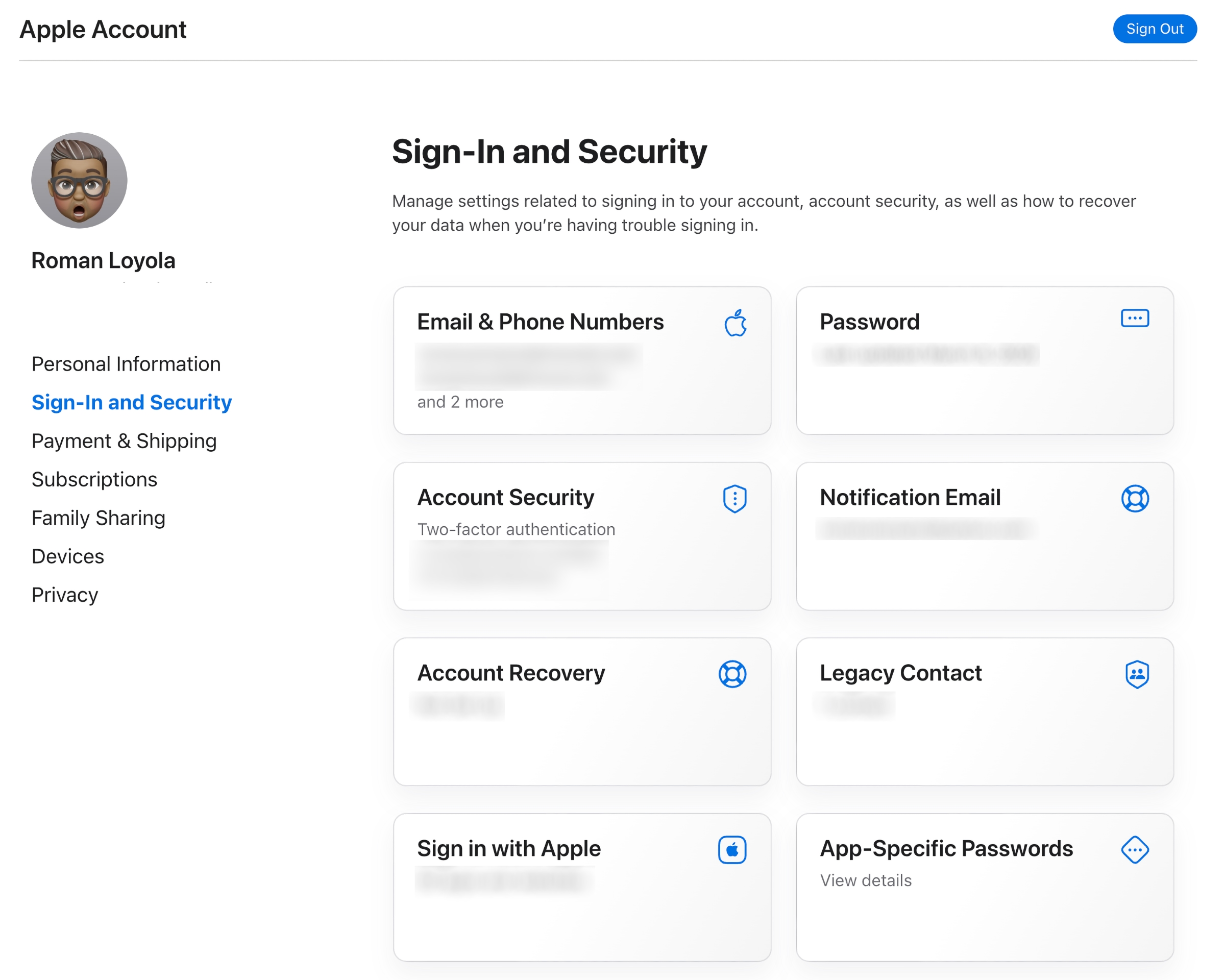
Information on the Apple account on the web on account.apple.com.
Foundry
How to regain control of your Apple account
If you cannot connect to your Apple account and think that someone else has control of it, here is what you can do to take the keys.
Reset the password of your Apple account. If someone else tries to access your account, you will want to change your password immediately. You can do it on your device in the settings or by visiting https://iforgot.apple.com. If you think that a pirate has already changed your password and that you cannot modify it, you can take measures to recover your account at the same address.
Check information from your Apple account. On the web, go to account.apple.com, log in and examine the information. Change everything that could have been changed.
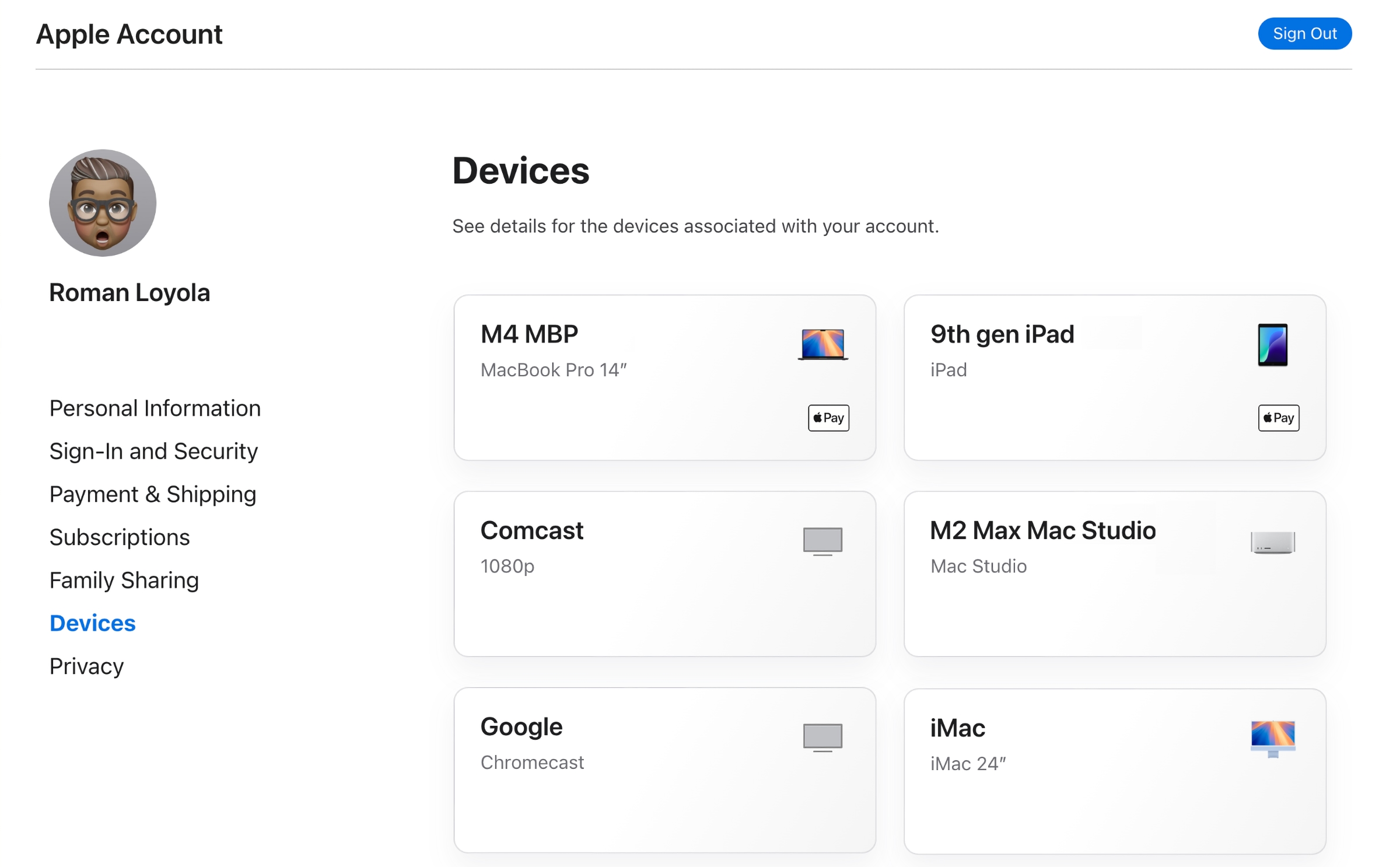
You can check the devices associated with your account on the iCloud website.
Foundry
Check your messaging and messages applications: Make sure you still have control of the services associated with your Apple account.
How to secure your Apple account
If you suspect a suspicious activity, you can take some measures to make sure you control your Apple account. These are good to implement even your account have not been compromised.
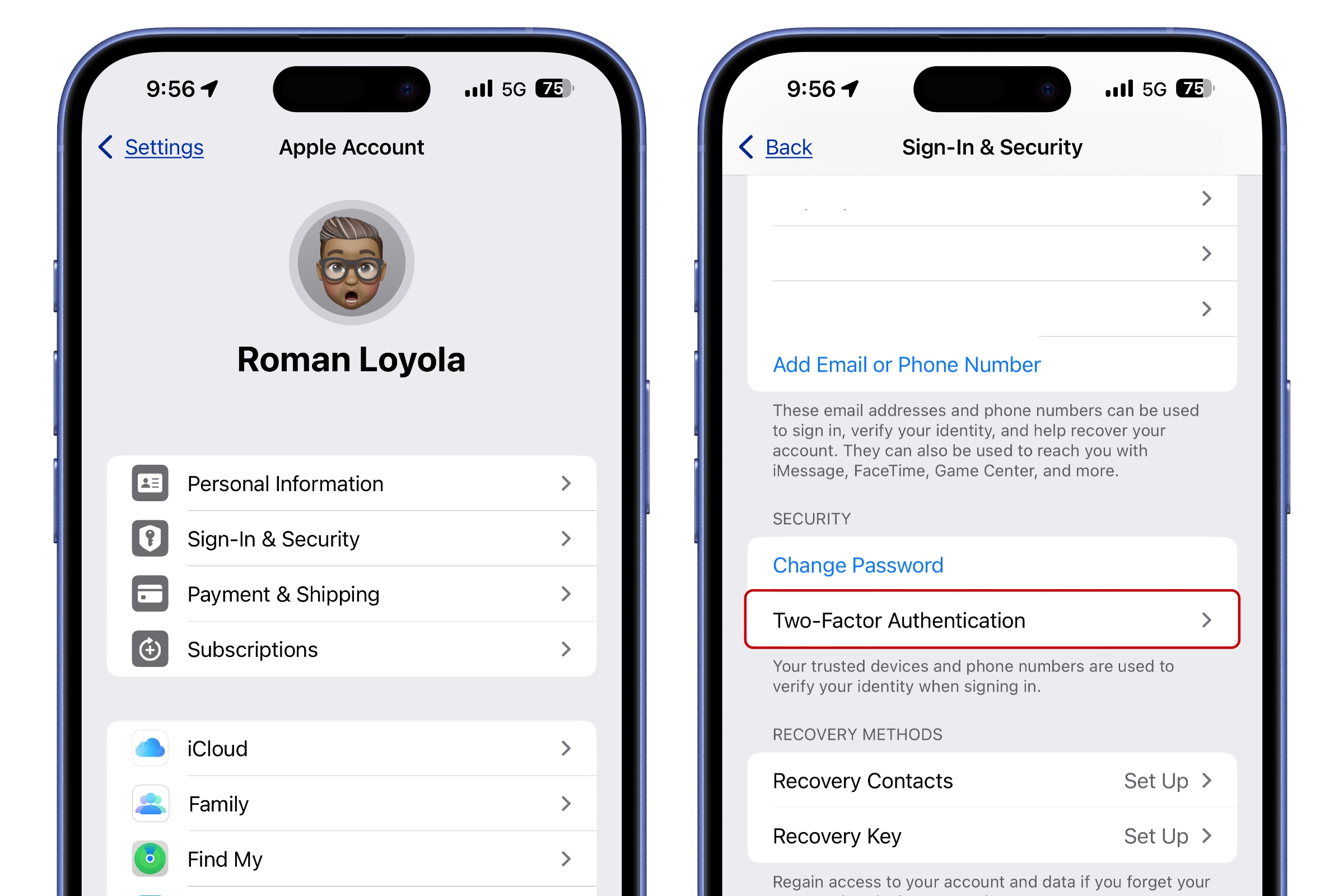
The configuration of two -factor authentication can be carried out in Settings> Apple account> Connection and security> Authentication with two factors.
Foundry
Check your user information. In settings, information from your Apple account is at the top. It should display your name and when you press, you should see your name and the email address associated with the account. In the settings of your Apple account, check the Connection and security Information and make sure that the email and the phone numbers correspond to your information.
Configure two -factor authentication. In your Apple account settings > Connection and securityYou can activate two -factor authentication. When you connect to your account, a notification on your trust devices seems to alert you to the connection. You will need to enter a six -digit code to authorize the action.
Use a safety key. For additional protection, you can use a safety key that connects to the USB-C port on your iPhone or Mac or connects wirelessly via NFC. A safety key is a hardware device the size of a hassle key that stores your account identification information online and connects to your device when you need to connect to your Apple account or another online account.
Here are more guides to help you with your Apple account (ID Apple).
Table of Contents


