One of the main innovations in terms of the interface with MIUI 12 is the new control center. This is a fairly unknown function which is hidden in the Xiaomi interface and which completely changes the Android shortcuts panel. We will show you how to activate it on your phone.
Also, if you had this feature and it suddenly disappeared, we will show you how you can get it back, because there is an application that allows us to re-enable this function to ROM.

Xiaomi iOS Style Control Center
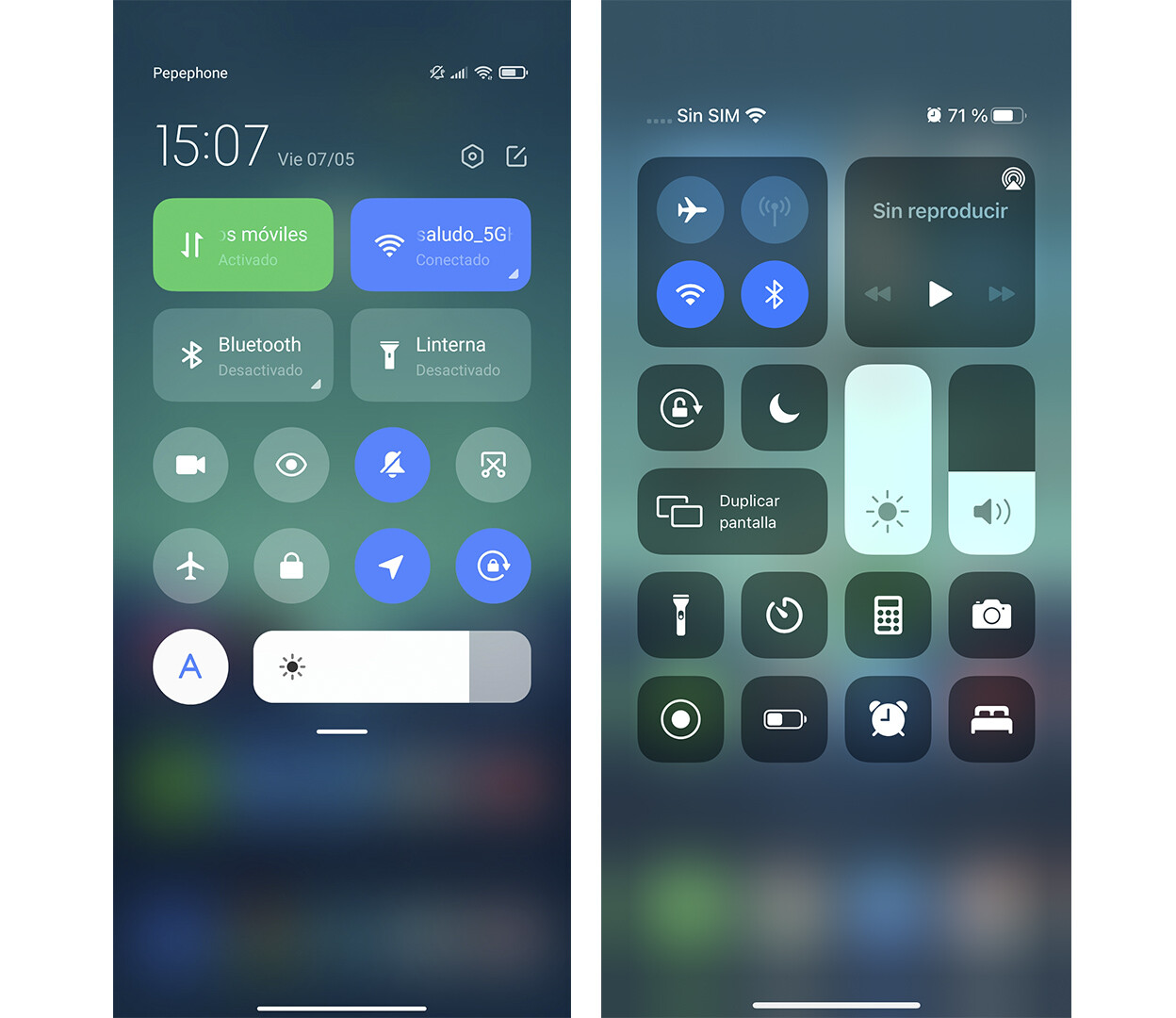 Xiaomi Control Center on the left. iOS on the right.
 Xiaomi has mapped out the control center of the iPhone to include it in MIUI 12. In Android, natively, we have a shortcut bar which just below contains the various notifications. In the iPhone, if we slide from the top to the right, we have the control center with shortcuts and, if we do it from the left side, the notification panel appears.
In MIUI 12, it is exactly the same, because in addition to being “inspired” by the functioning of this control center, the interface is linked to that of iOS. To activate this function, you just need to follow these steps.

- Open the settings of your Xiaomi mobile
- Click on ‘Notifications and Control Center’
- Scroll to ‘Control Center Style’ and press
- Activate the new control center
When activating the new control center, the interface change will be permanent (until you decide to change it to the previous one). You will have a new notification bar and a control center with direct access to WiFi, data, screen recording and more.
What to do if the control center does not appear
We have two options if the control center does not appear: try to reactivate it manually or install an application. Xiaomi deactivates this function in some terminals, as we can read in the Xiaomi community itself and as some users of the Redmi Note families have reported to us.
 Find the “use control panel” setting and change the value to “0”
 The advantage is that did not disappear as such, but is hidden. All you have to do to re-enable it is download the SetEdit app and change the “usagecontrolpanel “. If you don’t see this function, just change the value from ‘1’ to ‘0’. If it works for you, don’t touch anything.
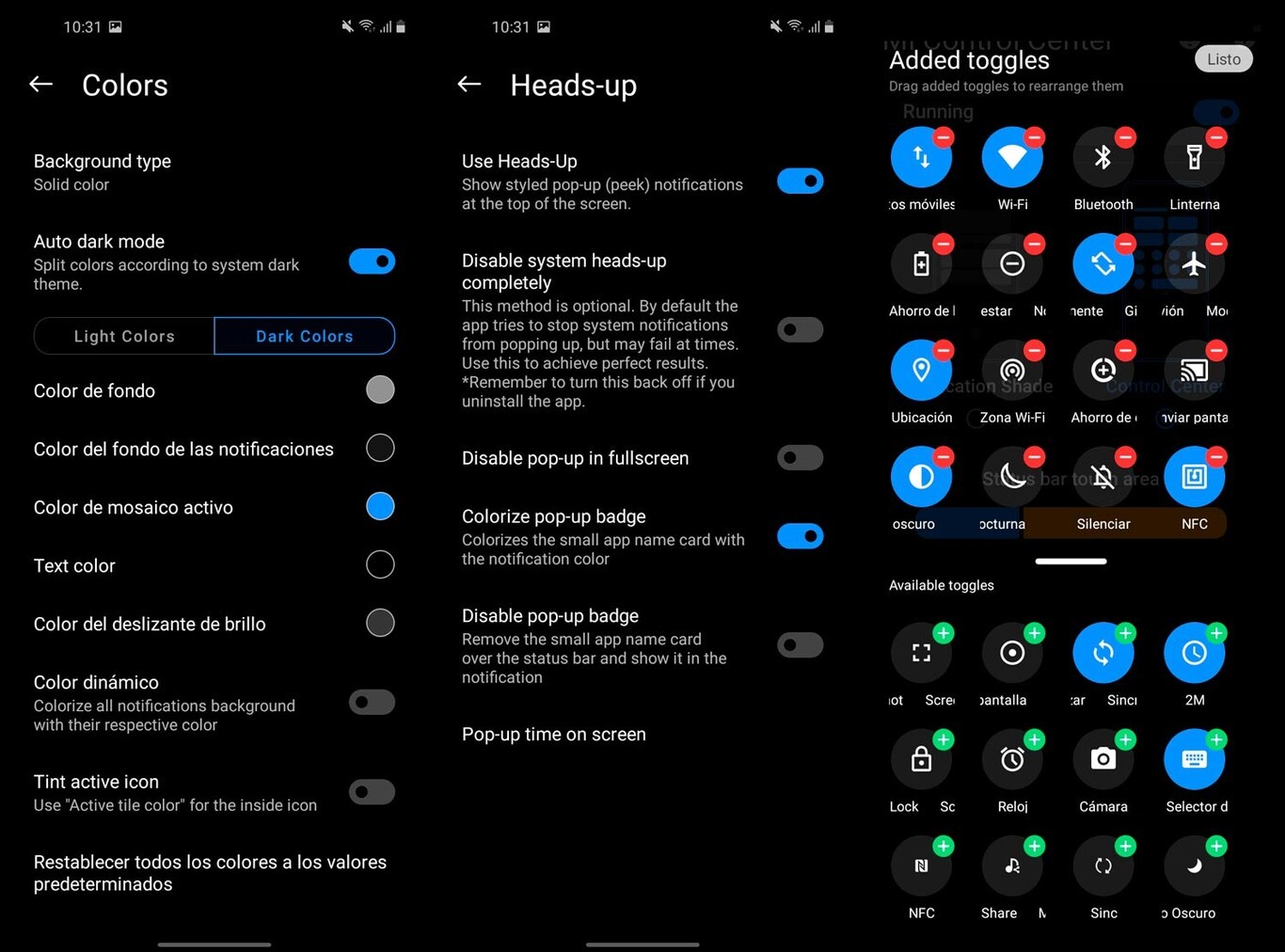
In case you dare not touch the setting (although it is simple, it is safe and does not require root), in the Play Store there is an app that perfectly mimics this control center . Of course, its main notification is that you must invoke it from the notification bar because in this case it does not divide the system parameters.