
If your Mac starts running slowly, the first thing to check is if you’re running low on space. It is generally recommended to have 10% of your total space free on your Mac for optimal operation. If you only have a few gigabytes left, it’s time to do some housework and reclaim some space.
Over time, a Mac is likely to accumulate a large collection of duplicate files that take up that valuable space, so that’s a good place to start. However, finding and removing them can take a lot of time if you do it one by one, so in this article we show you faster ways to clean your system of these delinquent lookalikes.
Why do I have duplicate files?
In most cases, these will be erroneous downloads (caused by double clicking on a link), attachments to mails and messages, complicated file system, bad habit of dragging items on your desktop or a number of other possibilities. Unless you’re a particularly demanding Mac user, duplicates are going to appear one way or another.
How to find duplicates using Finder
It is possible to locate duplicate files on your system using the Finder’s Smart Folders feature.
- Start by opening the Finder app.
- Go to File > New Smart Folder from the menu.
- Click the “+” button in the upper right corner.
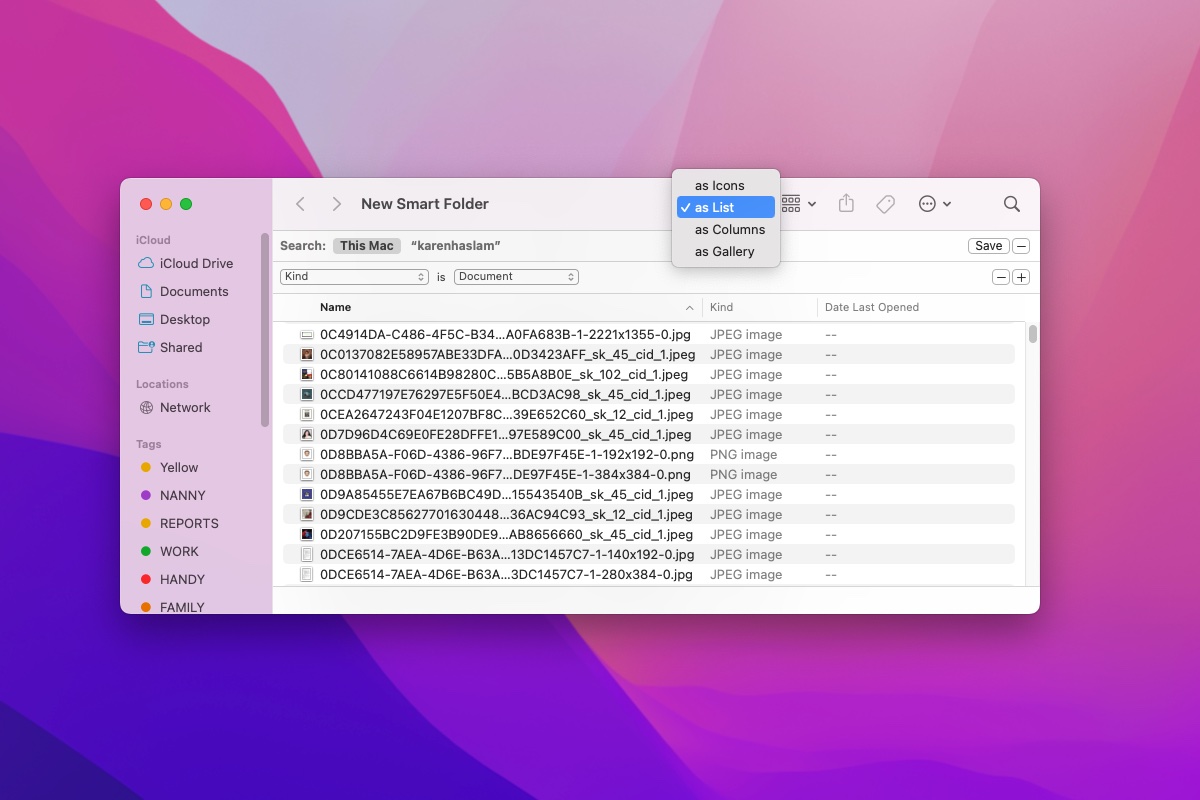
- Now choose what you want to search for to locate duplicate files, for example Kind=Image or Kind=Document.
You can now search for documents, photos, music, or several other file types. The key is how you sort the results. Ordering them by name should make duplicates easy to spot. (If it is not displayed in name order, click the drop-down menu to switch to List view).
Foundry
Foundry
Foundry
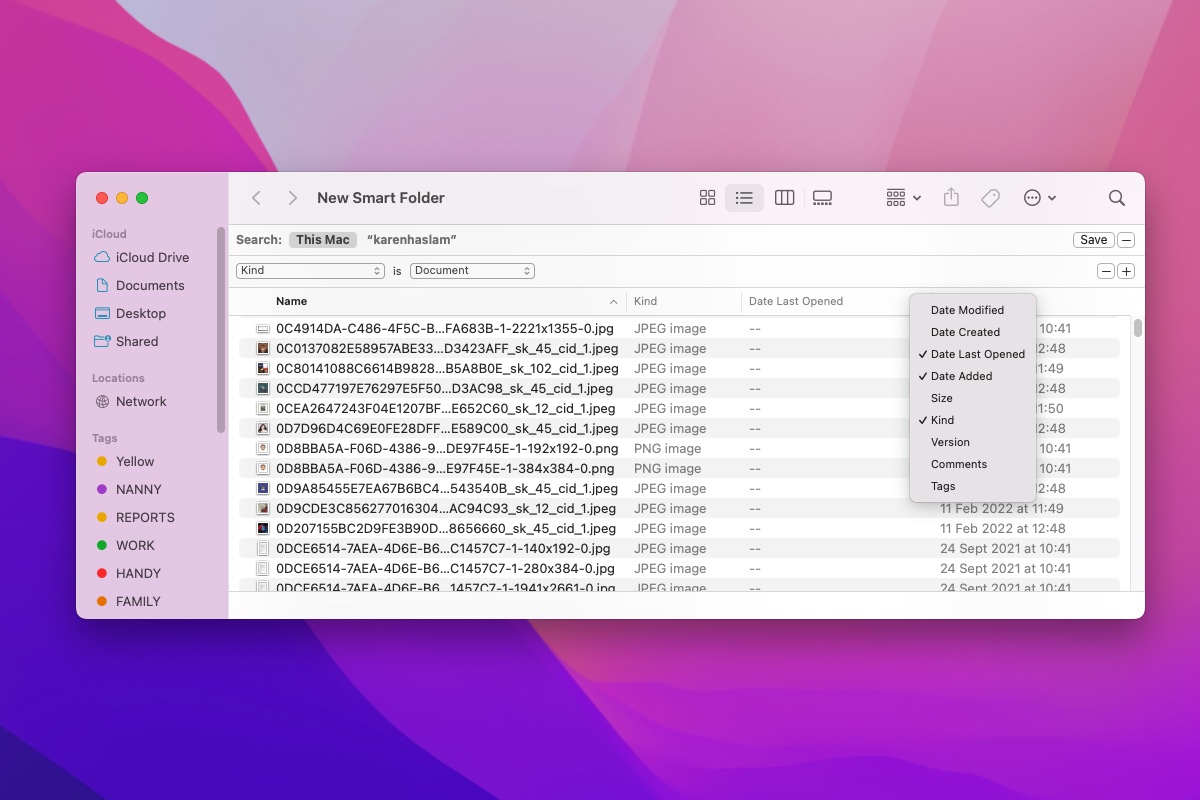
Don’t forget to check the date to see if it’s a true duplicate – you don’t want to delete the wrong version of an important document, for example. (If you don’t see the date, right-click and choose Date Added, you can even add the date last opened to make sure you choose the correct date to delete.
Another way to check is to click on the document or image and press the spacebar to preview.
You can also check the location of the file you plan to delete if you click to select the file and look at the bottom of the window. This might tell you if this is the version you saved in the correct folder.
Foundry
Foundry
Foundry
Although this method works, it is far from ideal. A problem could be that you gave different names to the same file and this method won’t display it.
It is also a time-consuming process and the time spent going through the long list of files could be better spent visiting the App Store and purchasing software that will safely find and remove duplicates for you.
Best Duplicate File Finder Tools for Mac
There are a number of duplicate file finder tools on the Mac App Store that will automatically search your system and recommend duplicate files that can be deleted.
Options include Nekony’s Duplicate File Finder, which has a free version on the App Store, as well as paid upgrades. You can also try Parallels Toolbox’s Find Duplicates feature, which has a seven-day free trial, and we like MacPaw’s Gemini 2 which has a three-day trial. Read our Parallels Toolbox and Gemini 2 reviews.
Most applications offer similar functionality, in that you ask the application to scan your hard drive and then a list of duplicates is presented, along with the original file so you know which ones can be safely deleted. security.
Usually, you will have to upgrade to a paid version to benefit from advanced features such as removing duplicate folders, hidden files and similar functions.
1. Gemini 2
One of our favorite duplicate removal apps, and one that gets a good level of positive feedback from customers, is Gemini 2, which starts at £15.95 per year for a Mac. Although the name sounds more like a dystopian sci-fi novel, the app is a powerful tool for your Mac.
Once you grant permission to scan your records, Gemini 2 will proceed to check for duplicates. Scanning our 256GB drive (with about 150GB of files) took about seven minutes. When the scan was completed, it had revealed 12.63 GB of duplicates.
Gemini 2 automatically selected 45.6MB files – these were duplicate photos. We were able to remove them automatically by clicking on Smart Cleanup.
However, there were still GBs of files ready to be deleted. It is possible to sort duplicates by choosing which version to keep. Click Select More to browse all duplicates found by Gemini. You can go through them and choose which one you want to lose. It’s a bit complicated having to do it manually, but it’s still easier and more visual than using the Finder. You can also choose to delete each instance of the file or photo if you really don’t need it.
Since we were deleting photos, Gemini reminded us that we also needed to delete recently deleted photos in Photos. We could also wait 30 days for them to be automatically deleted. You can review what was deleted and “put back” any files you are unsure about (but this step should be done before deleting the contents of your recently deleted folder.)
Not only can Gemini find duplicate files on your hard drive, but it also searches external drives and cloud storage services such as Google Drive and Dropbox. All this comes with the ability to immediately replace any accidentally deleted files.
Learn more about Gemini – and the company’s other related applications, such as CleanMyMac X – on the MacPaw website.
2. Find Duplicate Files Nektony
Nektony’s Duplicate File Finder can scan your home folder, or you can choose a particular folder or drag files into it. There are two versions of the software: a free version and a Pro version. The latter adds a few more features, such as the ability to merge folders and restore deleted duplicates. The Pro version costs $134.99/£34.99 for a Mac and can be purchased from the Mac App Store.
You will need to grant it permission to scan various folders and sections of your Mac. The software will then search for duplicates with sophisticated graphics representing the type of files it found.
You can then click on the Cleaning Tips section to find some files to delete. At each step, a detailed overlay tells you what to do. Just click on the x to remove it.
In each case, you can check the duplicate before removing it. As with Gemini, you can remove duplicates or delete all versions of the file or photo. The Check and Delete option lets you see a visual of where the duplicate file is, which can be helpful.
You can also choose Auto Select to select duplicates for you – you can even refine the selection. You can review them before deleting them.
Duplicate File Finder creates an album of duplicates in Photos, which you will need to delete in the Photo app. You will also need to remove them from Recently Deleted.
Parallels ToolBox offers more than 50 useful tools you can use to free up space and speed up your Mac, among which is an option to find and remove duplicate files.
The Clean Drive tool can locate unnecessary files that are taking up space on your Mac and find duplicate files that you may no longer need. There are many other tools that might be useful to you. Take a look at our full Parallels Toolbox review to see what else you get.
Toolbox requires an annual subscription of $24.99/£20.99 (unless you get it as part of Parallels Desktop), but you can take advantage of the 7-day trial.
Read our full Parallels Toolbox review
More advice…
For more decluttering tips, be sure to read our How to Free Up Space on a Mac feature and a separate article that explains how to empty the Trash on your Mac. We also have tips on how to remove duplicate music in iTunes (or the Music app).
We also have this guide on ways to speed up a slow Mac and how to clear other storage on Mac, how to clear system on Mac and an article on how to clear cache on a Mac.
Table of Contents


