
WhatsApp already allows you to protect, hide and block a chat with Face ID or Touch ID: more security for your chats.
WhatsApp has launched a very interesting function that allows us to block a specific chat or conversation in the app using Face ID or Touch ID. We could already block WhatsApp with Face ID for a long time, but this improvement adds another layer of security by being able to block a specific chat.
As reported by WhatsApp, both on Android and iPhone you can now enable this feature to block chats. The objective is add an extra layer of privacy to specific chats. When you want to read or send messages in this chat, you need to unlock it with device authentication, be it password, face ID or fingerprint .
How to enable chat blocking in WhatsApp
Block, hide and protect a WhatsApp chat now it’s easier than ever, perfect if you don’t want anyone to see those conversations. All you have to do is follow these steps:
- Enter the chat information (by clicking on the contact or chat name)
- Press on chat lock.
- turn the knob Block this chat with Face ID.
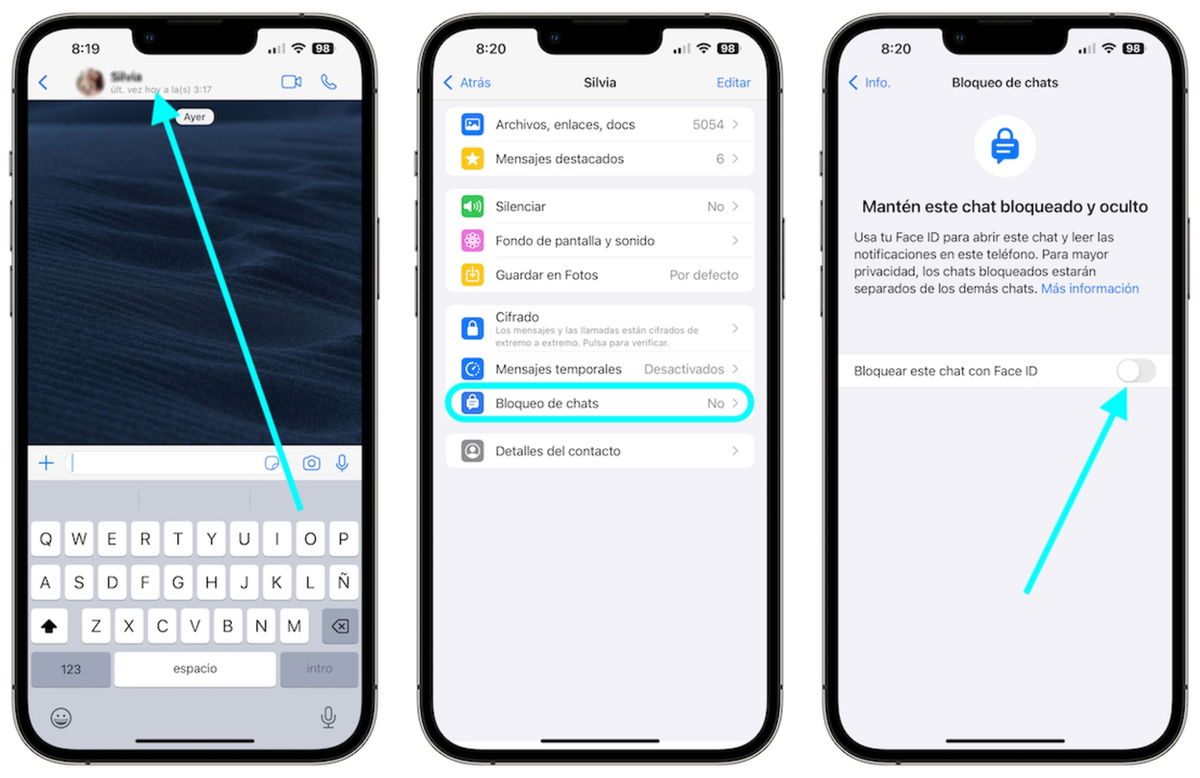
This WhatsApp feature protects any conversation with Face ID
whatsapp chat now is locked and hiddenso we can only access enter the Blocked Chats section. And to get into this section we have to identify us with Face ID or Touch ID. You can reverse this blocking by following the same steps and turning off Block this chat with Face ID.
How to see blocked chats on WhatsApp
For see the chats we have blocked, hidden and protected from WhatsApp We need to enter the Blocked Chats section. Here you will find all the chats that you have decided to protect with Face ID or Touch ID. Follow these steps:
- Enter the Chats tab and swipe down.
- Tap at the top of the folder blocked chats.
- Identify yourself with Face ID.
- tap the cat to view or send a message.
What exactly does WhatsApp chat lock do?
Blocking a WhatsApp Chat with Face ID or Touch ID Does More Than It Seemsnot only does it hide you from the chat list and protect you with biometrics, but there’s a whole lot more:
- Blocking a chat with Face ID will hide the contact and message content in the notification, which will only say this: WhatsApp: 1 new message.
- To preserve the confidentiality of media filesYou will have to unlock chat and save file in the phone gallery.
- The bone group chats and muted chats can also be blocked.
- The ace calls will not be blocked. If you receive a call from an individual or group chat, it will always appear.
- If you block a chat on your phone, it will only be blocked on this phone. If you have other devices linked to WhatsApp, chats will not be blocked on them.
- If you use the backup and restore feature in WhatsApp, your locked chats will stay locked after the restore is complete on a new phone. To access your locked chats, you must first set up device authentication (fingerprint or Face ID).
- If you block a chat with Face ID, the person you are chatting with will not know that the conversation is protected.
- If you want to block an archived chat, you will need to unarchive it first then block it.
This function will also prevent us from listening to WhatsApp audio without opening it on the iPhone and also being able to reply to message from Apple Watchbecause we have to open WhatsApp to be able to read it.
Table of Contents


