
If your iPhone is stuck on a black screen and you don’t know what to do, here are the steps to follow
Apple iPhones are generally very reliable devices, but no one and nothing is free from specific errors. And one of the mistakes that can overwhelm users the most is finding that Your iPhone is on but the screen goes black and doesn’t respond or show anything.
We know what to do when your iPhone gets stuck on the Apple logo, but this time we are going to see whatWhat steps should we take when our iPhone stays with a black screen?something that can be very scary.
- Why iPhone may have a black screen
- What to do when iPhone screen goes black

This is what you should do if your iPhone stays with a black screen
Why iPhone may have a black screen
There are several reasons why an iPhone may have a black screen, most of which are software issues.
iPhone without battery
When iPhone has no battery, screen goes black even if you try to turn it on. For a while, the icon will appear with the battery drained, but if it hasn’t been charged for a long time, this icon will not even appear. This problem is quickly resolved by connecting the iPhone to a charger.
Application that remains blocked
There are times when An app gets stuck on iPhone and the screen goes black. This issue with an app is sometimes resolved by trying to exit the app by swiping up from the bottom of the screen.
An iOS-specific problem
Although it is not very common, iOS may cause a specific problem that causes iPhone stuck with black screen. These types of issues can be fixed by force restarting the iPhone and it is unresponsive otherwise.
What to do when iPhone screen goes black
If your iPhone screen goes black, this is probably due to a software problem, as we discussed earlier. So there are several things we can try to solve.
Force restart iPhone
This is a procedure that fixes most iPhone problems, a force restart of the device that will not delete anything or cause any problems and This will most likely fix iPhone black screen issue. Follow these steps to force restart your iPhone:
- Quickly press and release the volume up button.
- Quickly press and release the volume down button.
- Press and hold the side button until the Apple logo appears (this may take up to 10 seconds to appear).
- The iPhone will restart unless it has no battery. In this case, first charge the iPhone for a while and repeat the process.
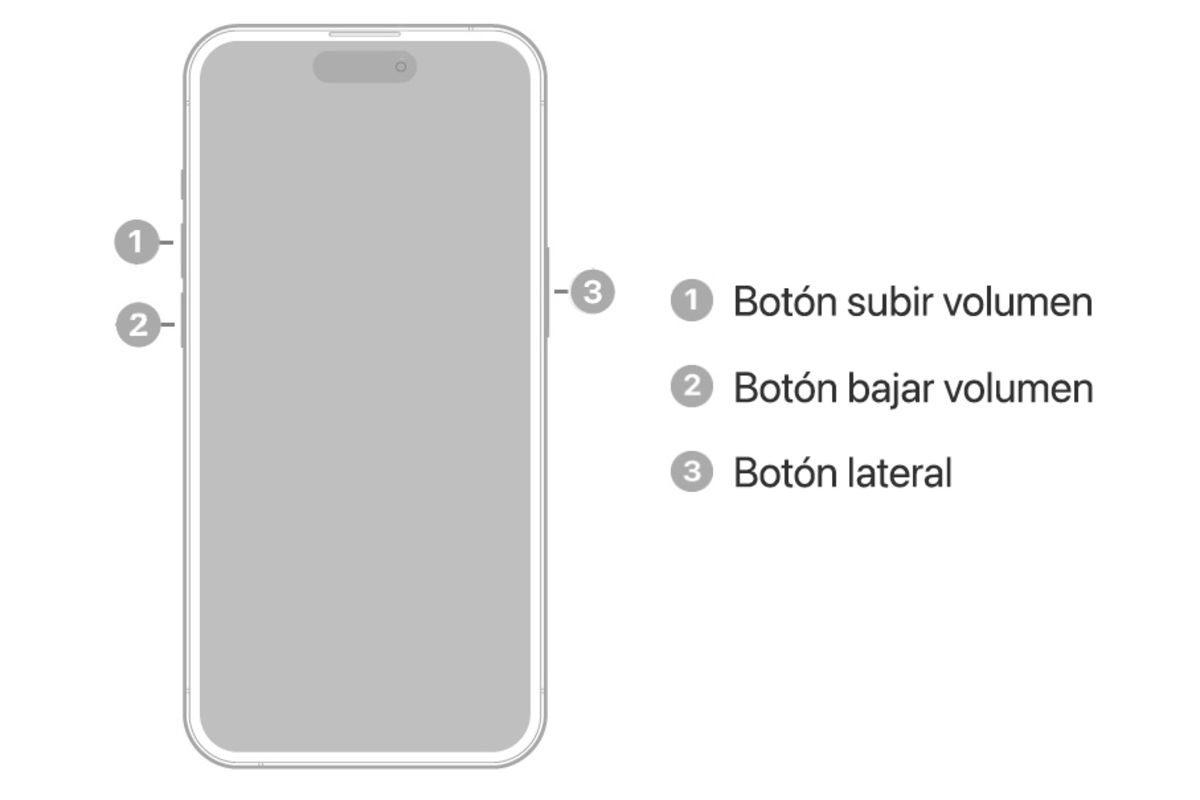
The button combination is essential to restart your iPhone
If you have an iPhone 7 or 7 Plus, you need to hold down the side button and the volume down button until the Apple logo appears. On iPhone 6s and earlier models, you have to hold down the home button and the side or top button.
Restore your iPhone from a computer
If the above does not work, the next step to take is to restore iphone. Since it has a black screen, you will need to restore it from a computer, whether it is a Mac or a Windows PC. Here are the steps:
- Connect iPhone to a computer.
- Select your iPhone on your computer from Finder on macOS or iTunes on Windows.
- With your iPhone connected, quickly press and release the volume up button. Quickly press and release the volume down button and hold the side button.
- Press and hold until the Recovery Mode screen appears on the iPhone.
- When you have the option to restore or update, select Update to avoid deleting content. If that doesn’t work, try restoring.
Talk to Apple Support
If none of this works, you should contact Apple technical support as the problem with your iPhone screen could be more serious and a repair would be necessary.
The bone iPhones usually don’t have many problems but sometimes they appear, if the screen has gone black, now you know how to fix it. The same thing happens with possible iPhone battery problems, there are ways to fix them quite easily.
Table of Contents


