
We’ve walked you through how to test the latest versions of Android on an emulator, how to test Wear OS, and how to test Android Auto, so that the next step is clear: how to test Android TV in an emulator on Windows.
If you are planning to buy a TV or a device with Android TV such as a Xiaomi Mi TV Stick, you might want to try it out first to see if this is what you are looking for. For this you can use Android Studio and the official Google emulator, which works reasonably well and the process is not at all complicated.
1. Install Android Studio

The first thing you’ll need is Android Studio, the official Android programming IDE. We have explained to you several times how to download and install Android Studio, although the process can be summarized in two steps: download the Android Studio installer from its official website and complete the installation, which is little more than pressing the button next.

The good news is that unlike the Wear OS or Android Auto emulator, to test Android TV you don’t need ADB nor the strange things. Everything is pretty straightforward and you should have it ready in a few minutes.
2. Create your virtual TV
With Android Studio installed, you should go to AVD Manager, where the emulator virtual devices are created. You will find it in the menu Tools – AVD Manager. After opening it, press Create a virtual device, or create a virtual device.

In the window that opens, switch to TV category and choose one of the two available profiles. Both simulate 55-inch TVs, the only difference being that one of them has a resolution of 720p and the other is Full HD. The choice is really irrelevant, although if you are good enough you might want to go for 720p.

Then you need to choose the software of this device. From Android Studio you can download Android TV system image based on Android 10, 9, 8 and earlier versions. The choice is yours, just make sure you download the version that matches your PC’s architecture, and in most cases it will be x86.

As soon as you click Next, the firmware download begins. It takes up around 600MB, so download will take some time and another time to decompress and be ready to use.

In the last step, you have a summary of everything you have done so far and you can optionally give your virtual device a name. Changing the orientation doesn’t make a lot of sense on a TV, although it is also possible. End of credit to complete your virtual TV.

3. Try out your new virtual TV with Android TV
Your TV with Android TV is now ready, but you haven’t started it yet. To do this, go back to the AVD Manager window and press play button next to your TV’s virtual device. If you haven’t changed the name, it will be called something like API 29 for Android TV (1080p).

Voilá, your virtual TV with Android TV will be shown in front of you, showing the same interface and the same initial setup wizard as if you were watching it on a TV. Unlike Android emulators for mobile, the one for Android TV comes with all the Google and Play Store services installed, so that you can download new apps directly from the emulator.
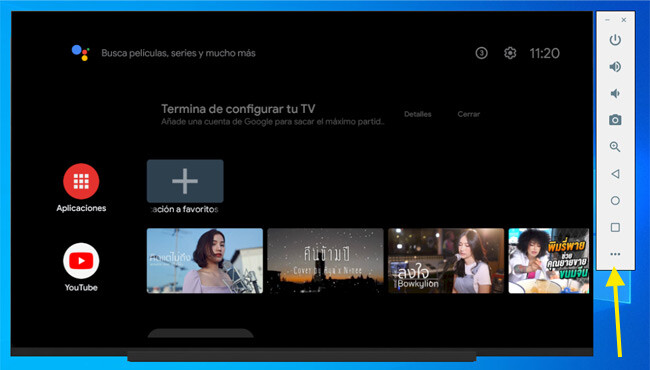
Android TV is typically used with a remote control, and while it is possible to operate it with a mouse and keyboard, if you want you can have a kind of virtual remote control. To do this, press the button with the three dots in the floating menu.
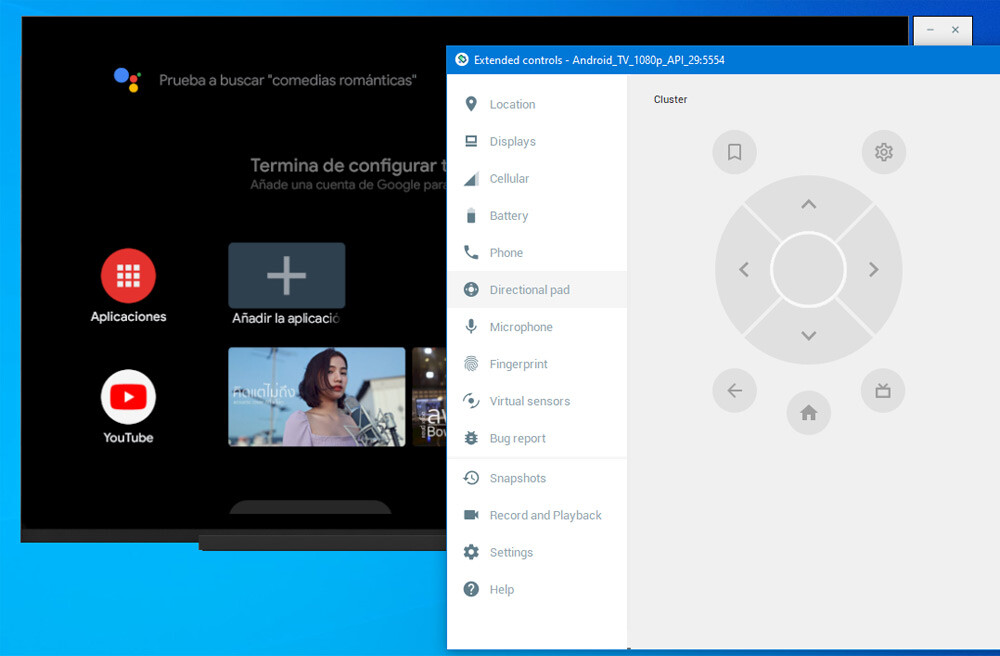
In the tab Directional pad You’ll find controls similar to a standard remote on Android TV, with directional buttons, one button to go back to start and another to go back. The downside is that it takes up a good portion of the screen and cannot be resized.
With the Android TV emulator, you can get a good idea of how the system works, what apps are available and how they look. The performance is pretty good, so that it is even possible to watch videos on YouTube or similar apps.


