
iPhone and iPad remember all the passwords of Wi-Fi networks you’ve connected to, so you can see them from Settings.
For multiple versions of iOS or iPadOS, we have a very quick and useful option to share the Wi-Fi Password with other Apple devices. Just by being close to another iPhone or iPad that wants to connect to the same network to which we are connected, we will see a notification on our device to share the key. But what if we want share wifi password with non-Apple devices?
In this case we have a very useful function that arrived recently and is available from iOS 16. With a few clicks in the settings we can see the password of the Wi-Fi network to which our iPhone or iPad is connectedas well as the password of any Wi-Fi network to which we have connected.

So you can see the Wi-Fi password your iPhone or iPad connected to
So you can see the Wi-Fi password saved on your iPhone or iPad
This function available in the device settings allows us to see both the password of the Wi-Fi network to which we are connected and that of all the Wi-Fi networks to which our iPhone or iPad has connected in some moment. The device remembers all these passwords and you can consult them.
How to see the password of the Wi-Fi to which the iPhone or iPad is connected
If you want to know the password of the Wi-Fi your iPhone or iPad is connected to For now, follow these steps:
- Go to Settings > Wi-Fi on iPhone or iPad.
- Tap the circle with an “i” that appears next to the Wi-Fi network you’re connected to.
- Tap Password.
- Log in with Face ID to see the password and copy it.

You can easily see the password of the Wi-Fi network your iPhone or iPad is connected to
How to View Passwords for All Wi-Fi Networks Your iPhone or iPad Has Connected to
But the iPhone or iPad not only allow us to see the password of the Wi-Fi to which we are connected, we can also see all the passwords of all the Wi-Fi networks to which we have connected at a given timeboth with the iPhone and with other Apple devices.
To be able to see the password for all Wi-Fi networks, just follow these steps:
- Go to Settings > Wi-Fi on iPhone or iPad.
- At the top right, tap Edit.
- Sign in with Face ID and all known Wi-Fi networks will appear.
- Click on the circle with an “i” of the Wi-Fi network whose password you want to know.
- Tap on Password to be able to view, copy or read it.
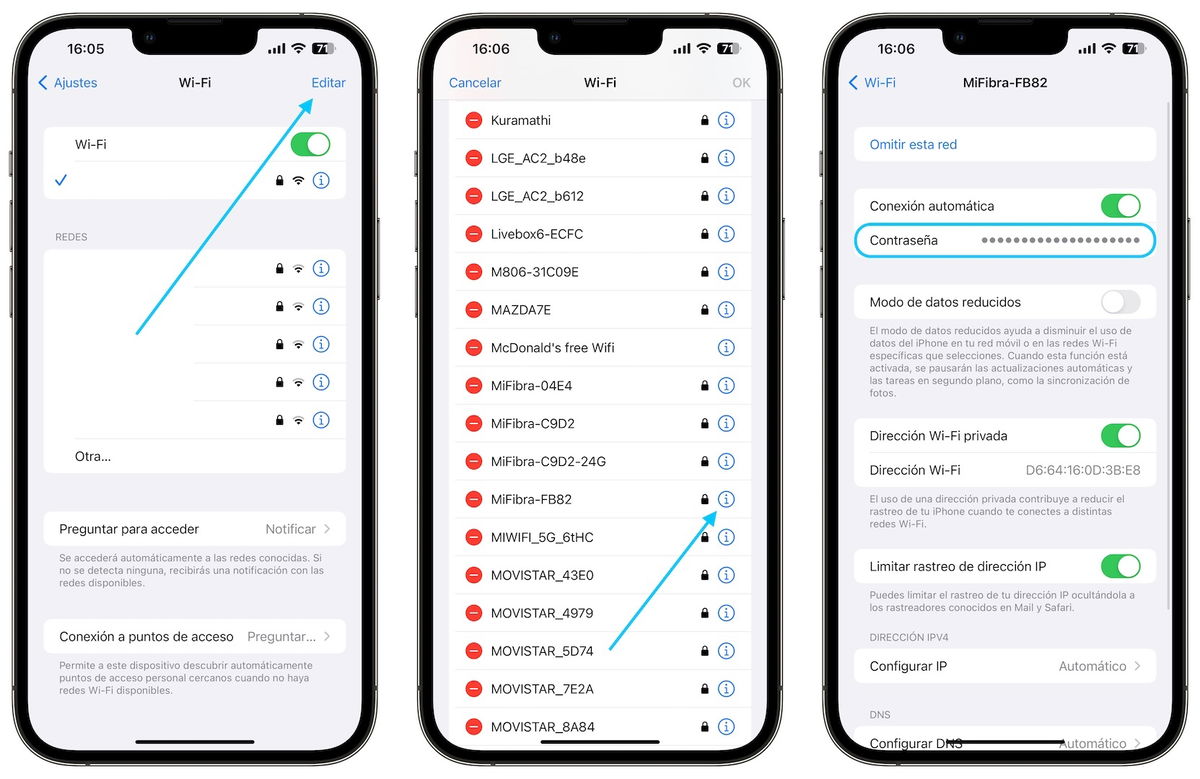
You can also find out the password of any Wi-Fi network you have connected to
Of course, it is a very interesting function which is available from iOS 16 and iPadOS 16 on all supported iPhones and iPads. So you can easily check the password of any known Wi-Fi network.
Table of Contents


