
Do you have an iPhone 16? You miss a very useful function called visual intelligence, we teach you what it is used for and how to use it
With the arrival of Apple Intelligence There are new functions that not only have to do with AI. One of them is Visual intelligence, a characteristic that provides information on any public site or object That they are in your environment. It's just Compatible with iPhone 16 from iOS 18.2 and with the iPhone 16th with iOS 18.3. The use mechanism is very simple, just control the camera or a dedicated button in the function with an iPhone 16th. In this article, we will show you how it works, what is it for and how to use it in your daily life. In case you have an iPhone that is not compatible with Apple Intelligence here, we show you how to reproduce this function and others.
So you can use visual intelligence on the iPhone
You can search for something like information about a restaurant or a store in public placesTranslate the texts in Spanish, make summaries or listen to it aloud. If you find plants or animals you don't know, visual intelligence will provide you with all the necessary information.
Keep the camera control button on all iPhone 16s, except the iPhone 16th to access the function. You can also use visual intelligence in these three ways::
- Action button: Customize this button on the left side of the iPhone
- Locking screen: In the buttons on the lower blocking screen, add a visual intelligence control
- Control center: Add the icon of visual intelligence to slide down the upper right corner of the screen.
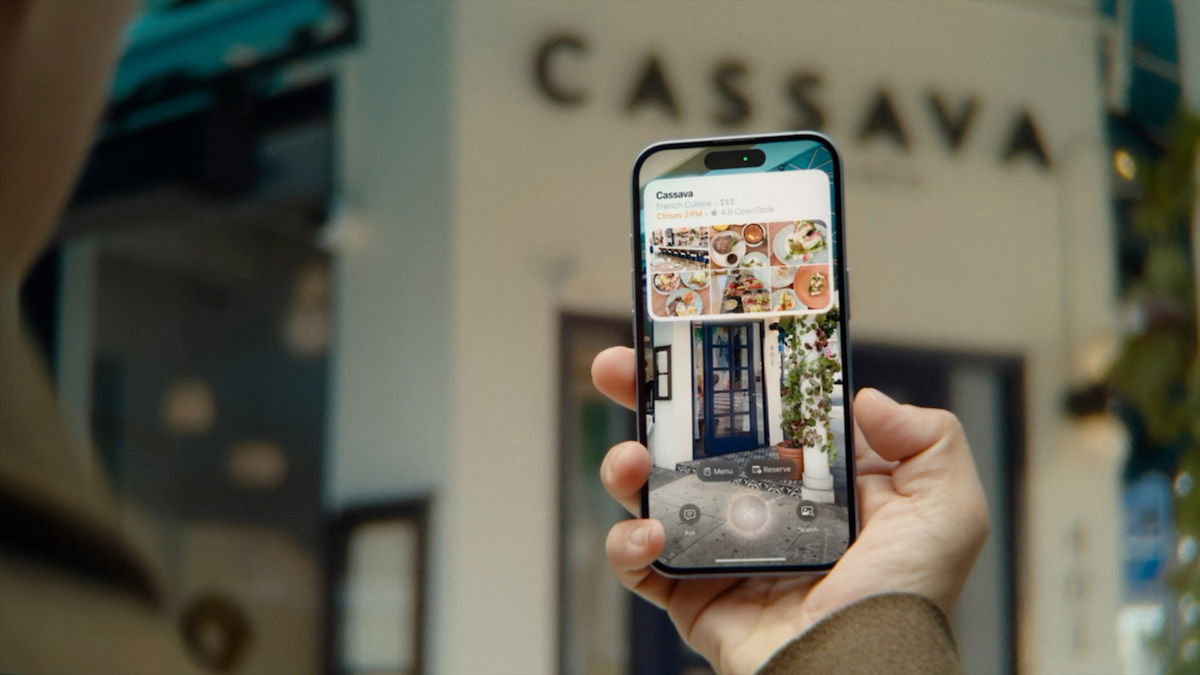
Visual intelligence will give you more information on a place or object on an iPhone 16
Visual intelligence to obtain information from places, animals and plants
This function, for the moment only available in the United States, is used to obtain information behind a company or any physical establishment. Hours, services and contact data, insofar as the possibilities also offer opinions and evaluations. In some, it is possible to make reservations or commands at home.
Just point with your iPhone's camera to the physical place. Press the company name screen or once again return the camera control button to obtain the information. In the same way as in physical establishments, you must target the camera to the animal or plant. In a few seconds, you can play in the result that the upper part of the screen will appear.

Apple visual intelligence in a poster
Interact with any text in your environment
If you see a printed ad or a text that surrounds your environmenta poster, an information sheet, etc., you can Use visual intelligence to interact with this text. If it is in another language other than Spanish, you can translate it or the iPhone can read it aloud. The function is responsible for Analyze the whole text and it is possible to perform actions As a appeal, activate the cards, enter websites, among others.
Point with the camera of your iPhone on the text in front of you. You can summarize the text, translate it, listen to it out loud or perform any action depending on the text. Press a phone number to invoke a call, write an email, create an event on your calendar or visit a website reading information on the screen.
The three -point button will give you all the options available for the action of visual intelligence with text.
Other uses with Chatgpt and Google
If you know Chatgpt and have already integrated it into Apple Intelligence with an account, You can use the OPENAI AI next to the visual intelligence to ask questions about a particular object or thing. Points with the iPhone camera to this object, then Press the text balloon button to invoke the Chatppt. Write a question in the text field at the bottom of the screen.
When you play in the image button, which will make visual intelligence to ask for Google's intervention to search for similar images. If you have found an object that reminds you of something in particular, if you are about to make a purchase and want to know more about the object, this function is ideal for this.
Visual intelligence will make the search for information more entertaining when putting on a more realistic scale. It had never been so easy to seek a particular object on the Internet or with the help of artificial intelligence. Without a doubt, you will enjoy doing it with your iPhone 16 when you go for a walk in the street or if you decide to look for new public places to visit and discover new products.
You can follow Ipadis On Facebook, Whatsapp, Twitter (x) Or consult our Telegram channel to be up to date with the latest technological news.
Table of Contents


