
One of the new features of the stable version of Chrome 95 for Android it was planned. Although the update has been available for several days now, Google activated a new feature in your ‘Onmibox’, that is to say in the search and address bar of your browser.
Google Lens extends its integration with Chromium. If for two years it was integrated into the contextual menu of images, now it is integrated directly into the address bar to facilitate reverse image search from the browser itself.
It is the integration of Google Lens with Chrome
With the latest version of Chrome for Android, Google activates this shortcut to Google Lens by default, which results in the camera icon which now appears just to the right of the microphone icon, which gives access to voice search. We can therefore already search by text, voice or image.

The integration of Google Lens allows us to select any image or take a photo directly with the camera to be analyzed by Google’s artificial intelligence, which will be able to recognize the elements, codes, texts and formulas therein. appear, in addition to showing us similar images.


Here’s how to configure the Google Lens shortcut
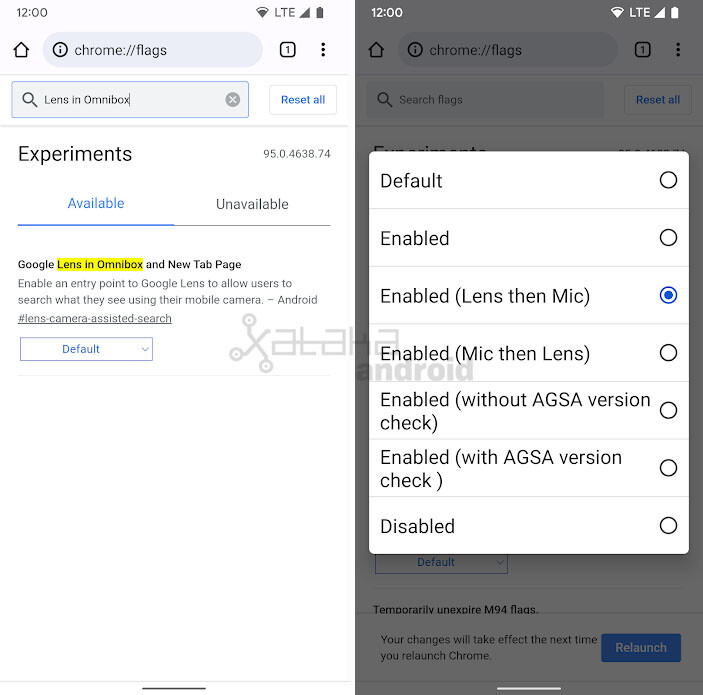
Google Chrome defaults to direct access to Google Lens to the right of the microphone, but thanks to the experimental functions we can change its position or disable it completely. To do this, just follow these steps:
- In the address bar, enter Chrome: // flags
- Look for the flag ” Google Lens in the Omnibox and the New tab page
- Select the desired option:
- Default: enabled by default.
- Activated: force activated.
- On (Lens then Mic): access to the lens before the microphone.
- Activated (Mic then Lens): access to the microphone before Lens.
- Enabled (without AGSA version check): enabled without the Android Google Search app verifying the version.
- Enabled (with AGSA version check): enabled with version check of the Android Google Search app).
- Disabled: disabled, it will not display the shortcut to Google Lens,
- Click on ” To restart “ to save the changes. You can touch restart browser a second time to view the changes.

In Engadget Android | You can now take scrolling screenshots in Google Chrome: here’s how it works


