
Each application that we have installed consumes resources of our Android device each time that we use it or that it runs in the background, such as battery or storage, so it is very useful to know which applications consume the most resources to find out if we need to clean or if an application that we use is barely running out of resources.
Then we will see how we can discover which apps are consuming the most storage, battery, RAM and dataand all of themselves system settings of your Android device, without having to install third-party applications, since Android itself is already in charge of monitoring these consumptions.
Storage used by applications
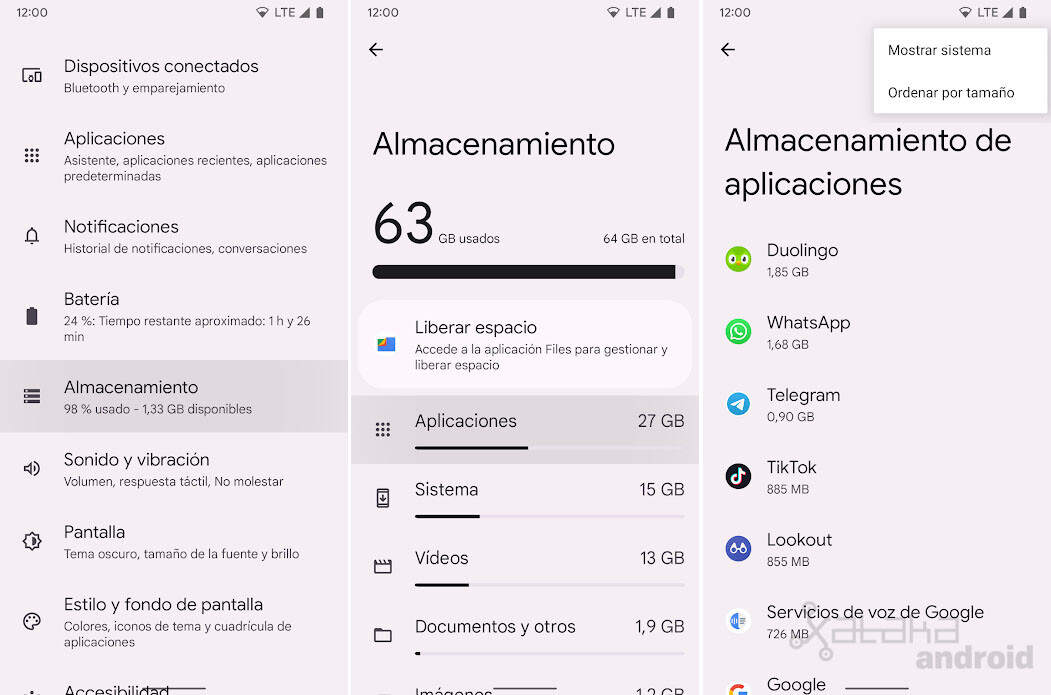
We start with storage. At Settings > Storage > Appsand we order by size We’ll see which apps are using the most storage, so if we find that an app has grown too big, now would be a good time to clear its cache.

Battery used by applications

If we find that the battery lasts less than usual, it is possible that there is an application with excessive battery use. To check we have to go to Settings > Battery > Battery Usage. We will see the battery usage in the last 24 hours, showing the most consuming applications. If we find that an app that we barely use has excessive battery usage in the background, it could be due to an app error, a problem that Google Play Services can cause when something isn’t working. correctly.
RAM used by applications

From your device’s developer options, we can check the RAM used by apps. A first way is to Settings > System > Developer Options > Running Services. There we will see the RAM currently used by the applications and services that are currently running in memory. Here you’ll be able to check if there’s an app you haven’t opened if it’s running in the background for no reason, as well as see which app is currently using the most RAM.

From Android 12 we can also see from Settings > System > Developer options > Memory > Memory used by applications a disc with RAM used for applications in the last 3, 6, 12 or 24 hours. We can sort the list by average usage or maximum usage to check if the RAM usage matches the usage we make in the apps.
Data used by applications

Finally, if our data rate is limited, we can check from Settings > Networks and Internet > Internet the consumption that applications make with mobile data. Click on the settings of our operator and on Application Data Usage We will see for months the applications that have consumed the most mobile data to verify that everything is correct.
Pictures | Freepik, alphabet design and vector stall
In Engadget Android | Free up space on WhatsApp: everything you can do in the app to clean up your internal memory
Table of Contents


